We are so excited to have our very own booking platform, built and maintained in-house. At HQ, we call this platform Passport.
Passport is where you can manage all your inquiries, bookings, and payments; chat directly with concierge and customers; manage your calendar; manage your payments; upload your portfolio and booking photos; view shareable photos; access photographer resources; stay up to date on photographer news; and connect with your fellow photographers in the Flytographer community. Please read through the full guide, including FAQs, below.
Tip! 🌟 Click on any image below to enlarge it.
- Need help getting set up for payments? Click here.
- Looking for the Photo Uploading Guide? Here it is.
GET STARTED
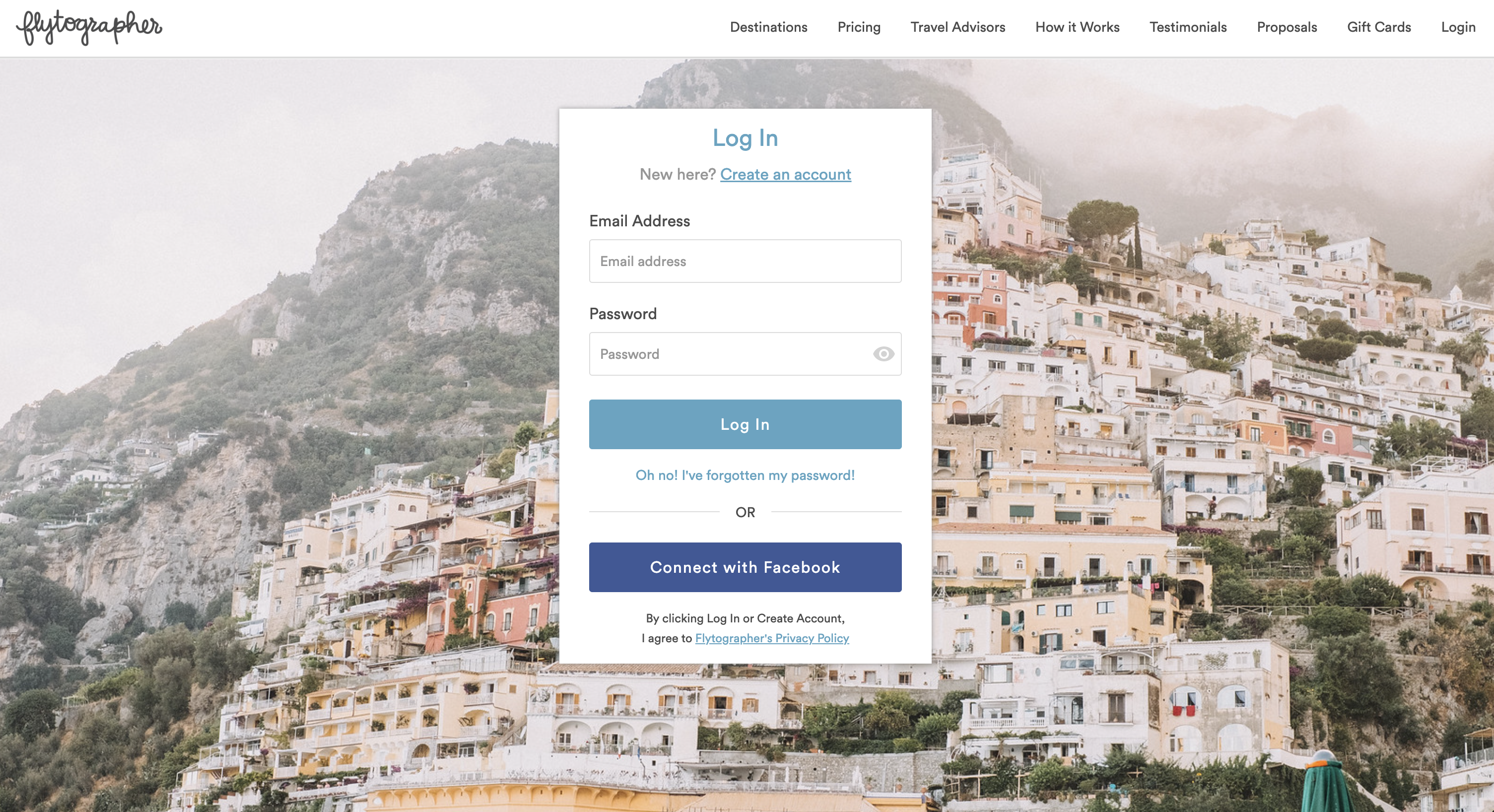
Log in to your Flytographer dashboard by entering your associated email address and password.
If you cannot remember your password, click I’ve forgotten my password and we’ll send you a link to reset it.
DASHBOARD
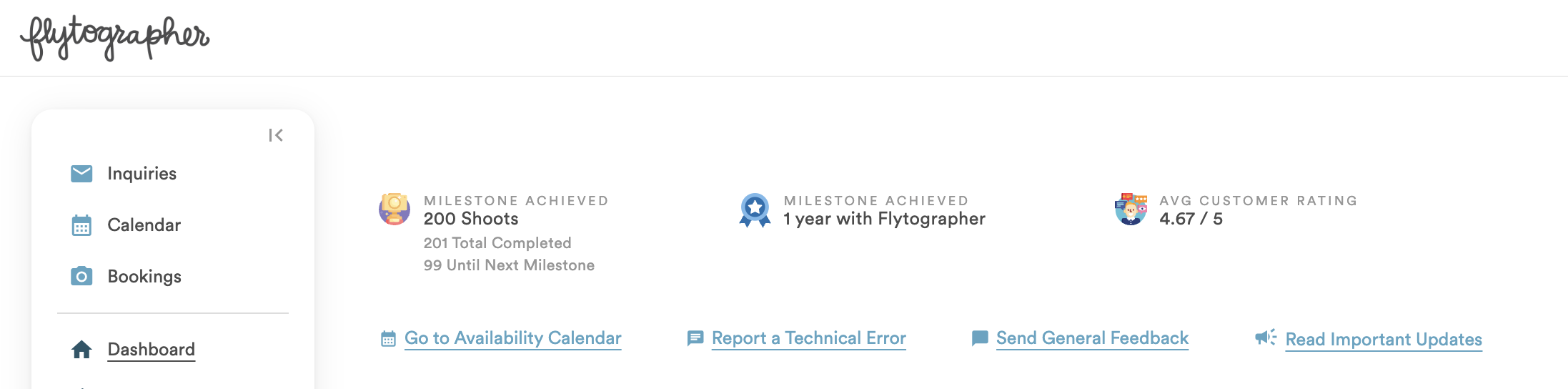
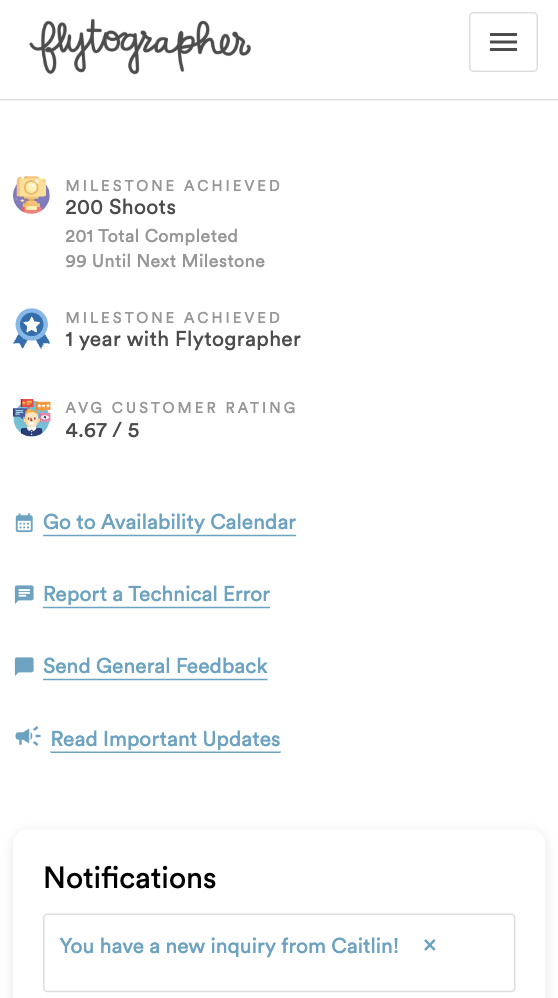
This is where you will find an overview of your milestones, notifications, and shoots.
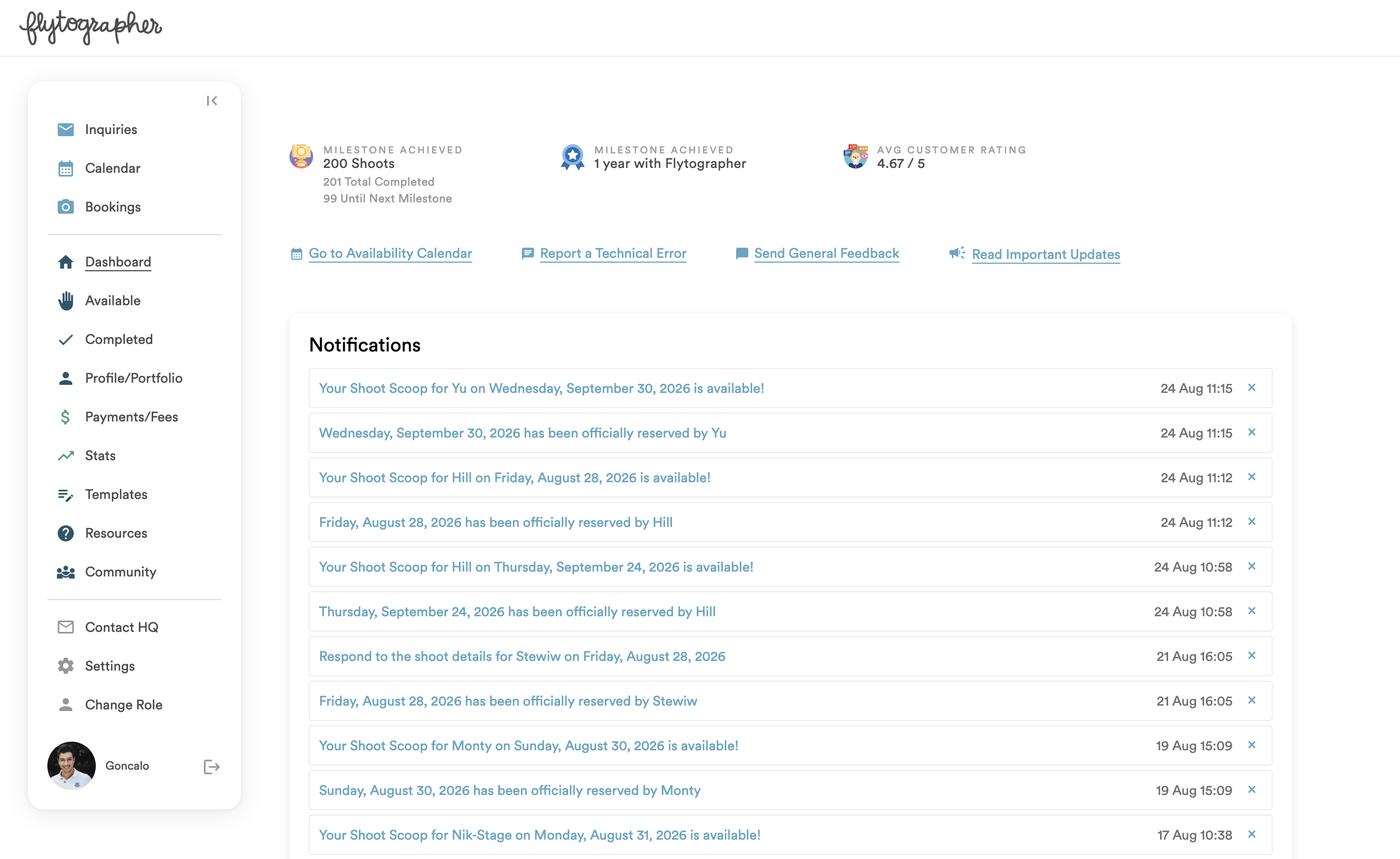
- Milestones: This shows badges earned for years on team and how many shoots you’ve completed.
- Rating: Once they receive their photos, customers have the option to share their feedback on Flytographer and rate their experience with you out of 5 stars. This number represents your average rating.
- Links: Helpful links to your calendar; to report a technical bug or issue; share your feedback; and see past photographer newsletters
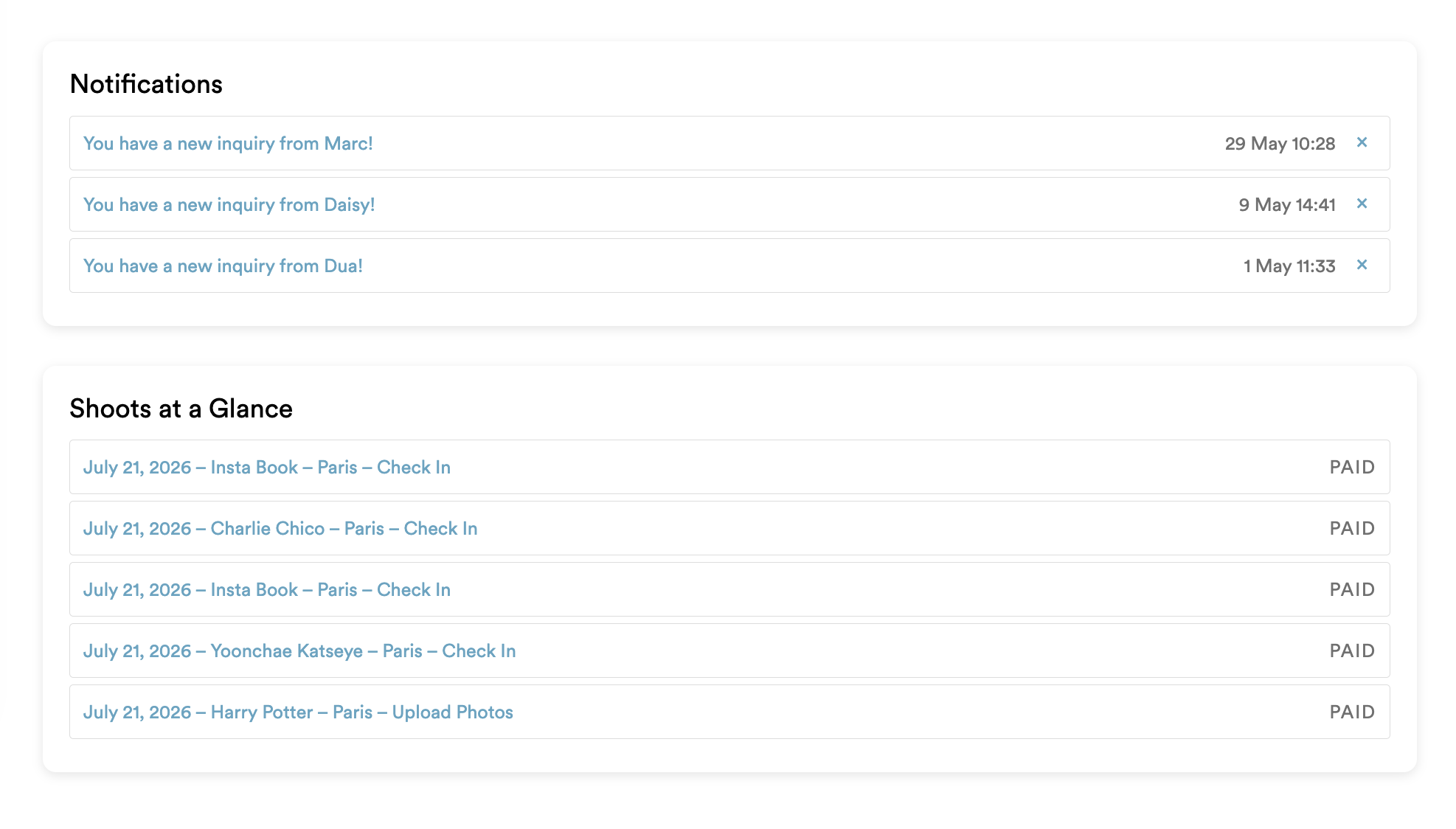
Notifications: View all of your new inquiries and Shoot Scoops. Each notification will link you to the corresponding shoot when clicked, and disappear once completed.
Shoots at a Glance: Displays all of your upcoming bookings.
INQUIRIES
This is where you can view and respond to customer inquiries, and check on inquiries you have already responded to. Inquiries will move to your Bookings tab once they are booked, or will be removed from your dashboard if the customer doesn’t book, or books with another photographer.

Respond to new inquiries in the Action Needed section. Click the + to open the section. You will see all the details the customer has given so far, including occasion, number of participants, route and requested date and time. Click the confirm your availability dropdown to respond. You will have 3 choices:
- Accept the shoot at the requested date and time.
- Suggest a different date and/or time.
- Respond that you are unavailable.

If you accept the date and time, you can add the time you recommend shooting and offer an alternate route if needed.
You can choose one of your pre-written response templates, or write a note to the customer with no template. Response templates are a great way to respond to inquiries efficiently – once selected, response templates can be edited to ensure you give all customers a personalized experience (the more personal a response, the more likely a customer will book!)
Click Submit my Availability to submit your response.
The inquiry will move to the next section, Awaiting Customer Response, while we wait for the customer to confirm.


If you have responded yes to an inquiry, we recommend you add the date to your calendar right away. Click Add to Calendar and choose your calendar (Apple, Google, Outlook or Yahoo).
You are required to hold inquiry dates for 3 days to give the customer time to book. Once paid, a shoot will move to your Bookings tab. If a customer decides not to book, or books with another photographer, we’ll send you an email to let you know so you can remove the date from your calendar.
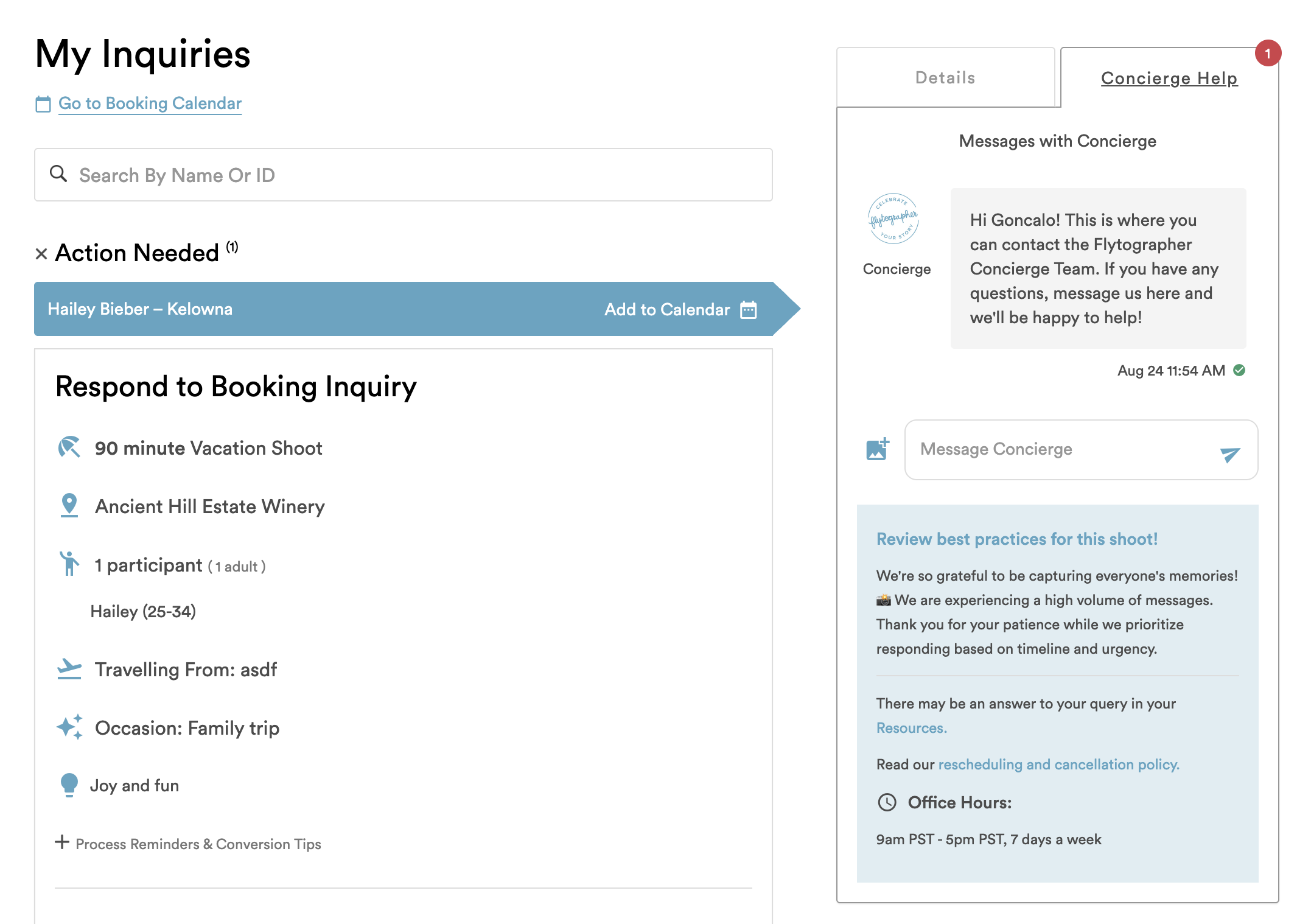
Ask your concierge any questions about a specific shoot through the chat feature. Messages are received in real time, but it may take our concierge team 24 – 48 hours to respond due to volume. We do our best to prioritize urgent messages.
BOOKINGS
Once a customer pays, a shoot will move from the Inquiries tab to the Bookings tab. This is where you can review booking details, finalize custom route meeting locations, complete proposal planning, make any required date or time changes, request to cancel, and upload photos.
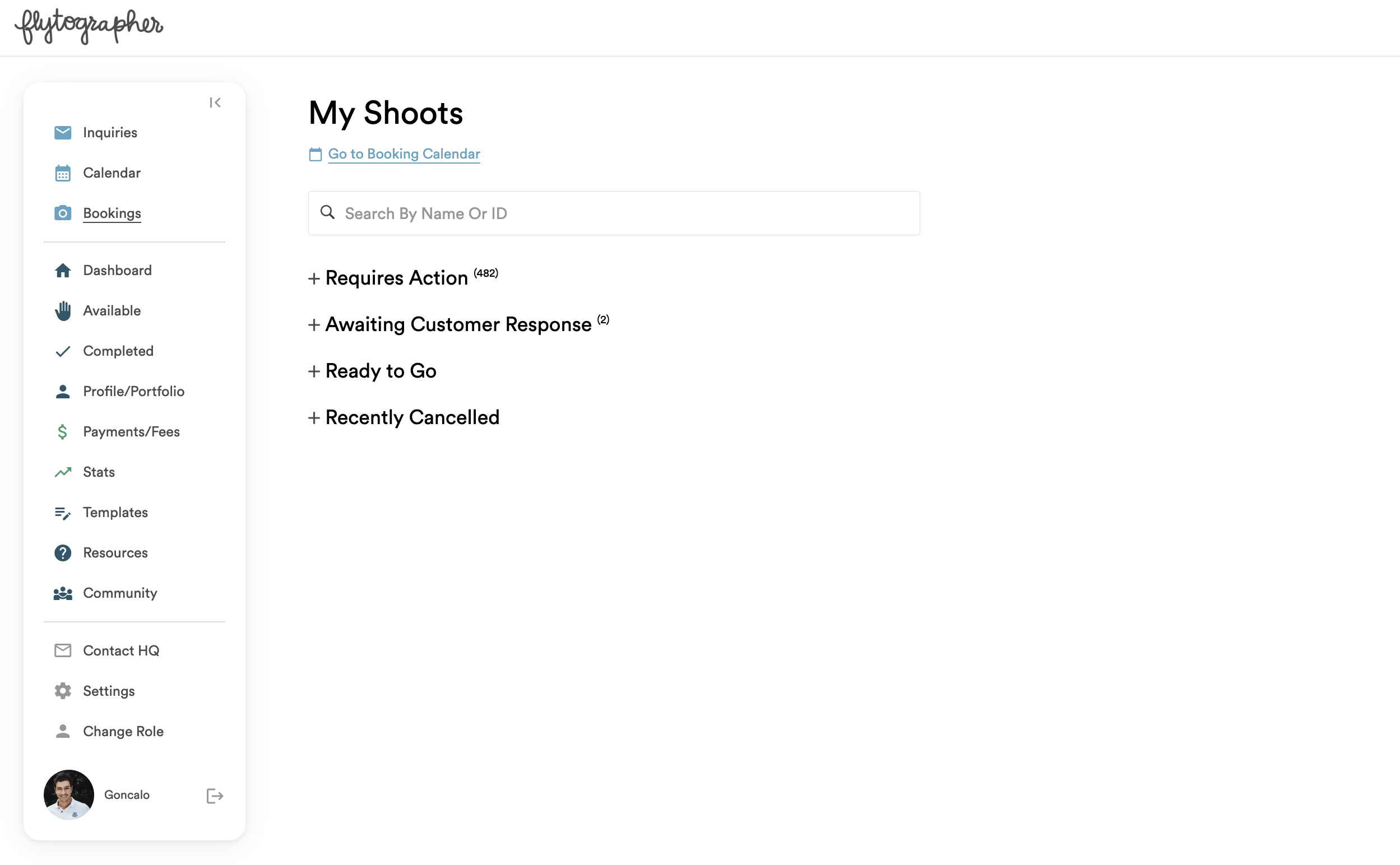
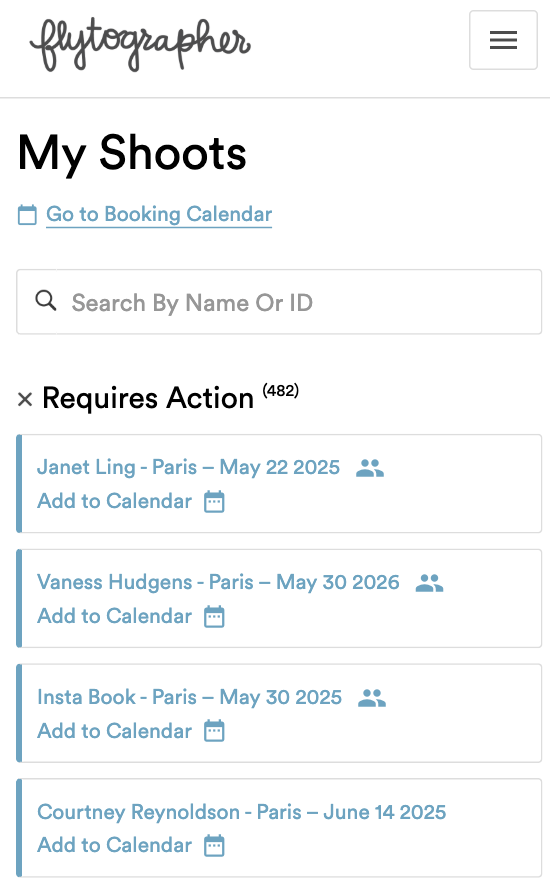
There are four sections in your Bookings tab: Requires Action; Awaiting Customer Response; Ready to Go; and Recently Cancelled.
If a Booking is in your Requires Action section, the booking needs action by you. For example, this is where you’ll find bookings that need you to start or complete Proposal Planning, finalize Custom Route details, or review a Shoot Scoop.
Click on a shoot to access and complete the required task and see all the details about the shoot on the side panel.
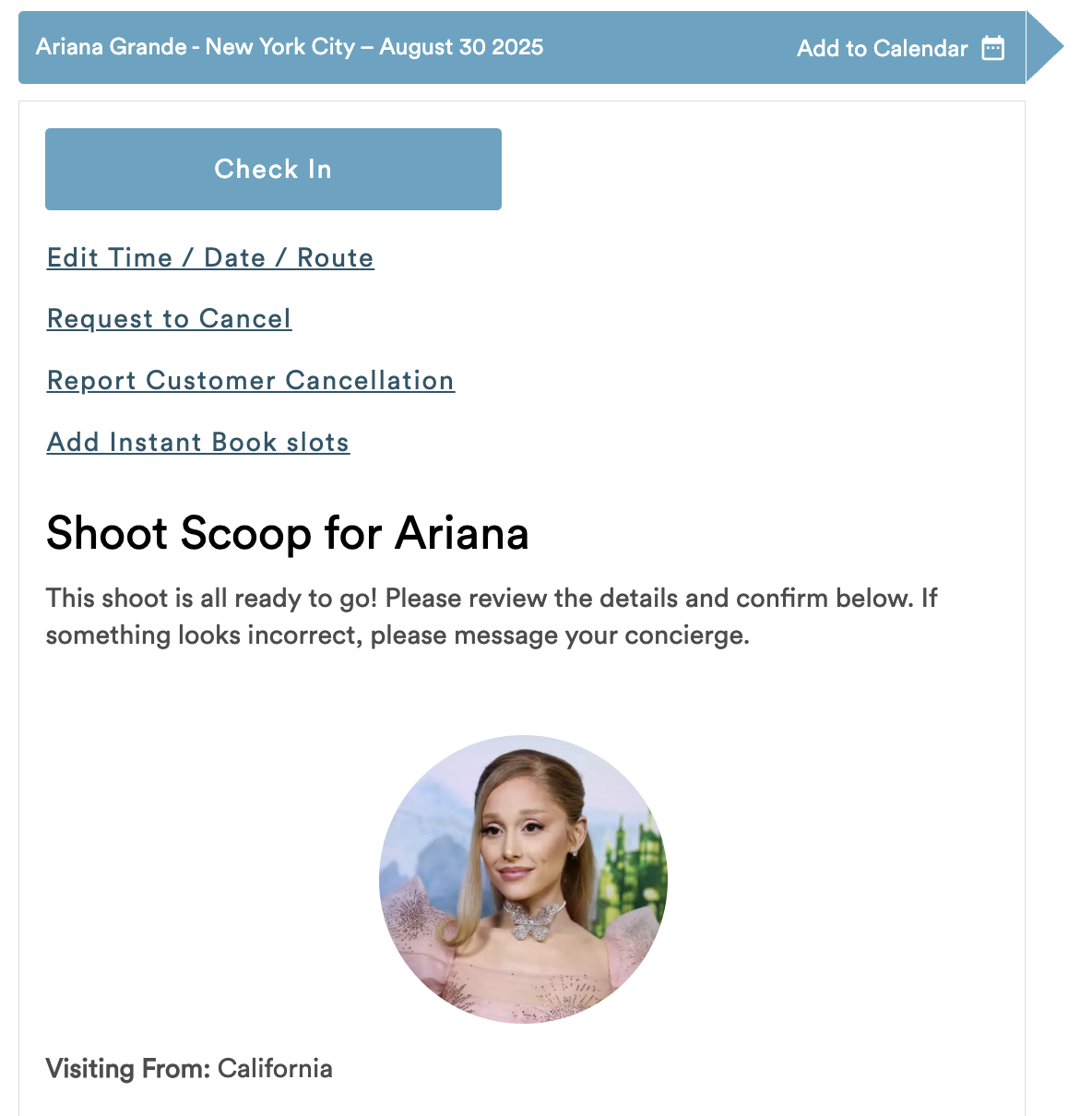
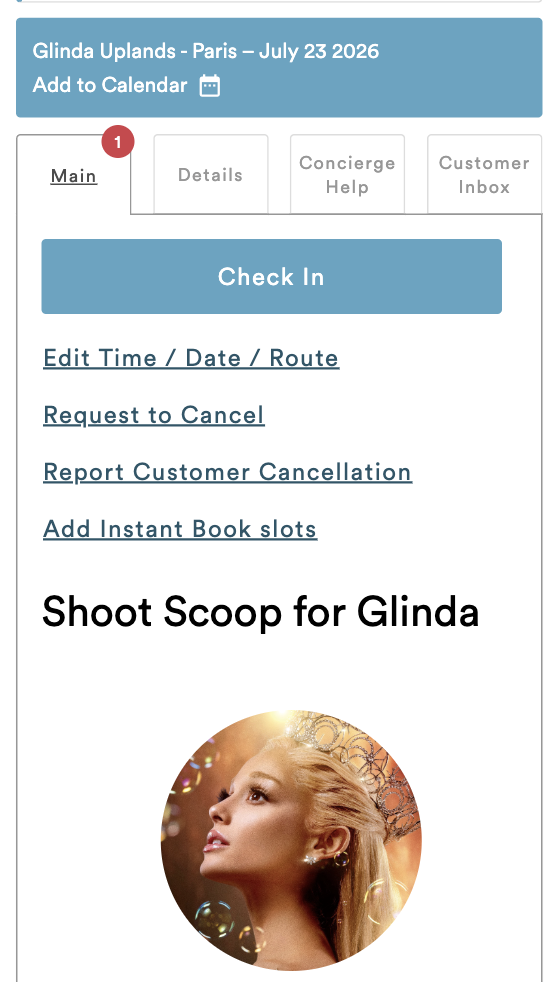
When you open a booking, you will see a Check In button at the top, along with options to edit the time, date or route, request to cancel the shoot, report a customer cancellation, or add Instant Book slots before or after the shoot time.


If everything looks good on the Shoot Scoop, scroll to the bottom and click the Everything Looks Good button. This will move the shoot into the Ready to Go section to keep you organized.
You can see your bookings on a calendar view by clicking Go to Booking Calendar
COMPLETED
After you’ve uploaded and submitted photos for a shoot, it will move to this tab.
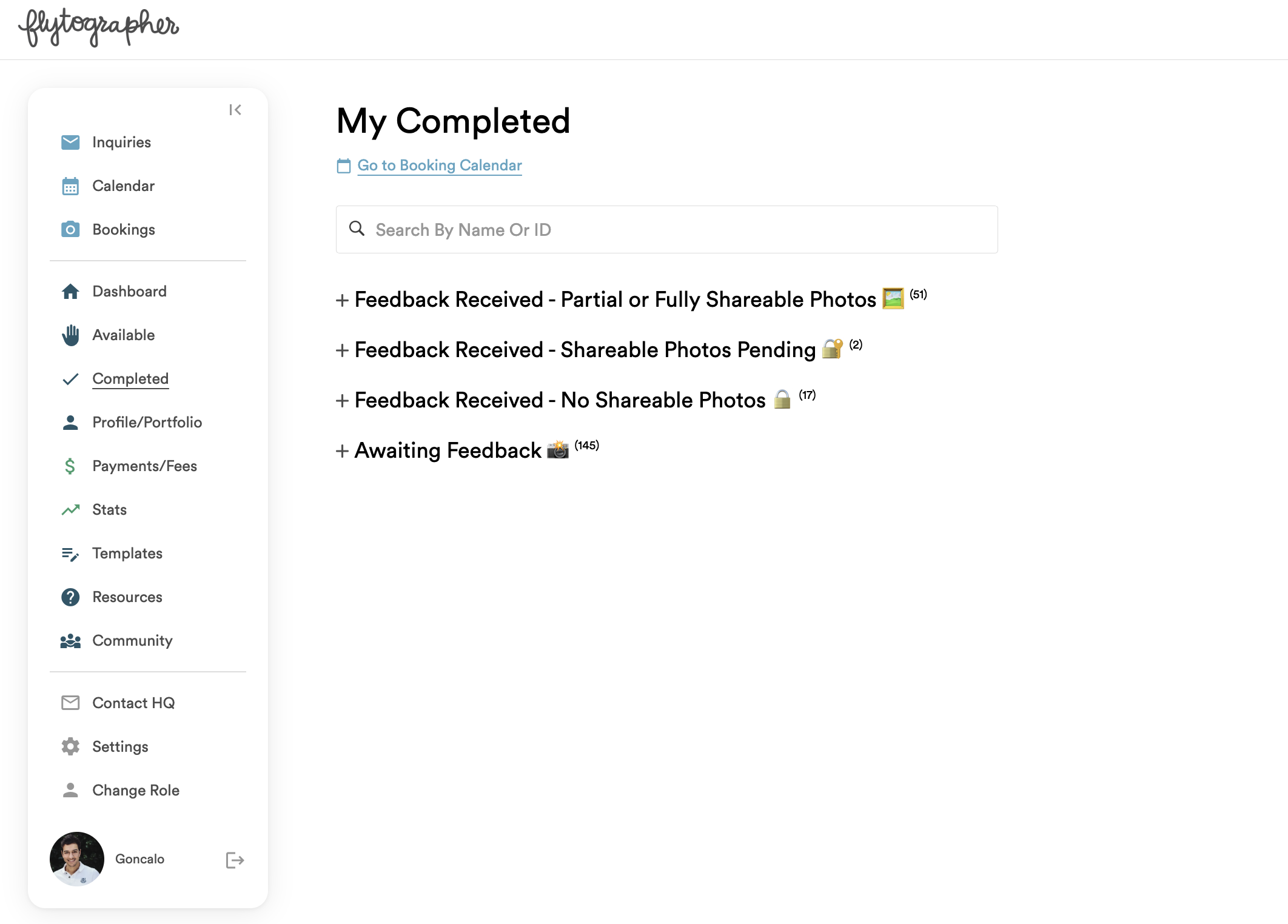
The different sections on this tab indicate whether we have received feedback from a customer or not.
If we have received feedback, the customer will decide whether Flytographer and you can share all, some or none of the photos. We take privacy very seriously and never share unless the customer has opted in.
Please read our Sharing Policy in detail here.
CALENDAR
This is where you can update your availability for each city you service. It is extremely important for you to keep your calendar up to date to maintain customer trust and ensure they don’t get excited for a photo shoot that isn’t actually available.
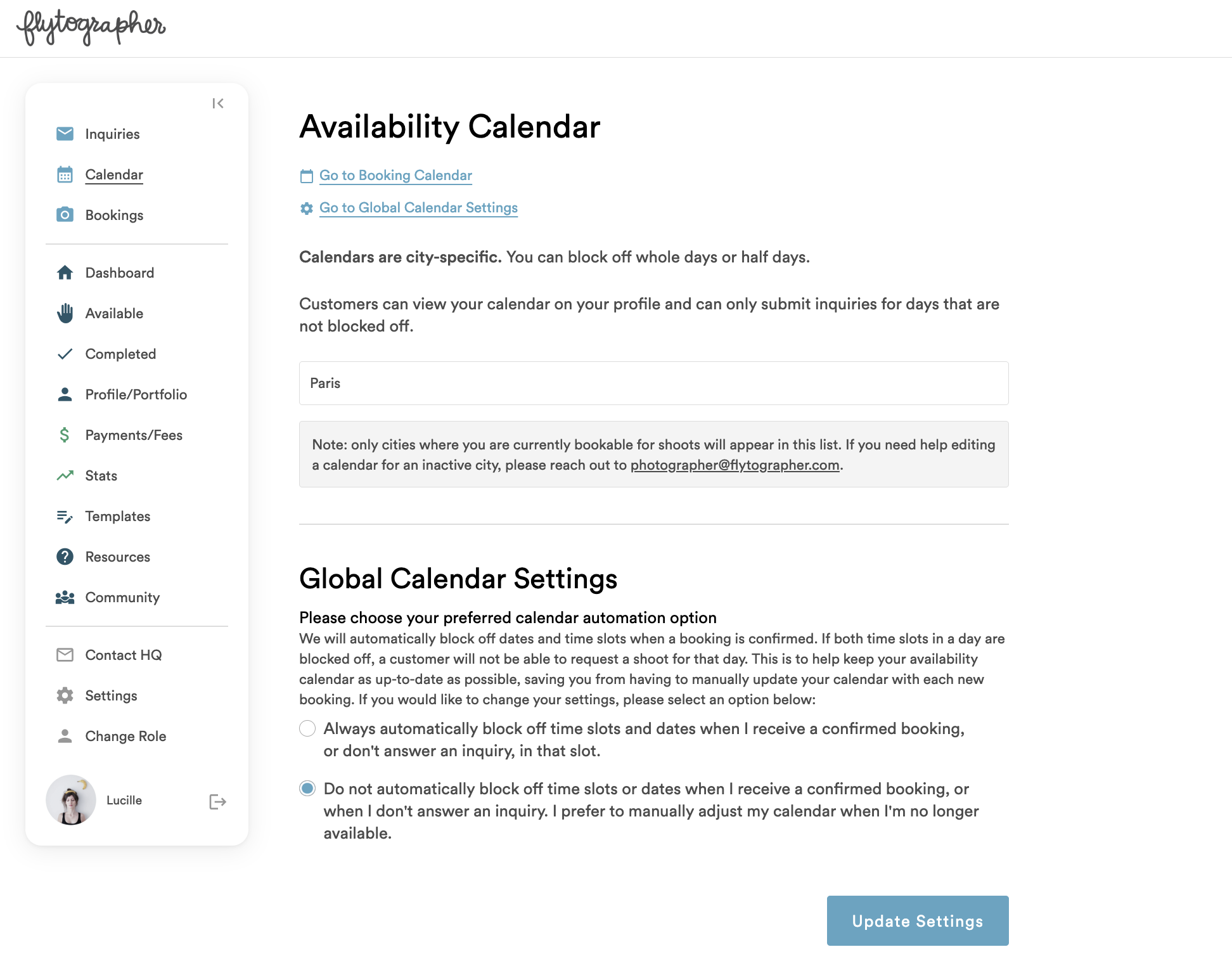
Choose a city to block off dates and times you are unavailable to take bookings.
Please visit the Calendar Availability Guide for full details on how to manage your calendar.
This is also where you can choose whether or not to automatically block off time slots when you receive a confirmed booking to ensure you don’t get double-booked.
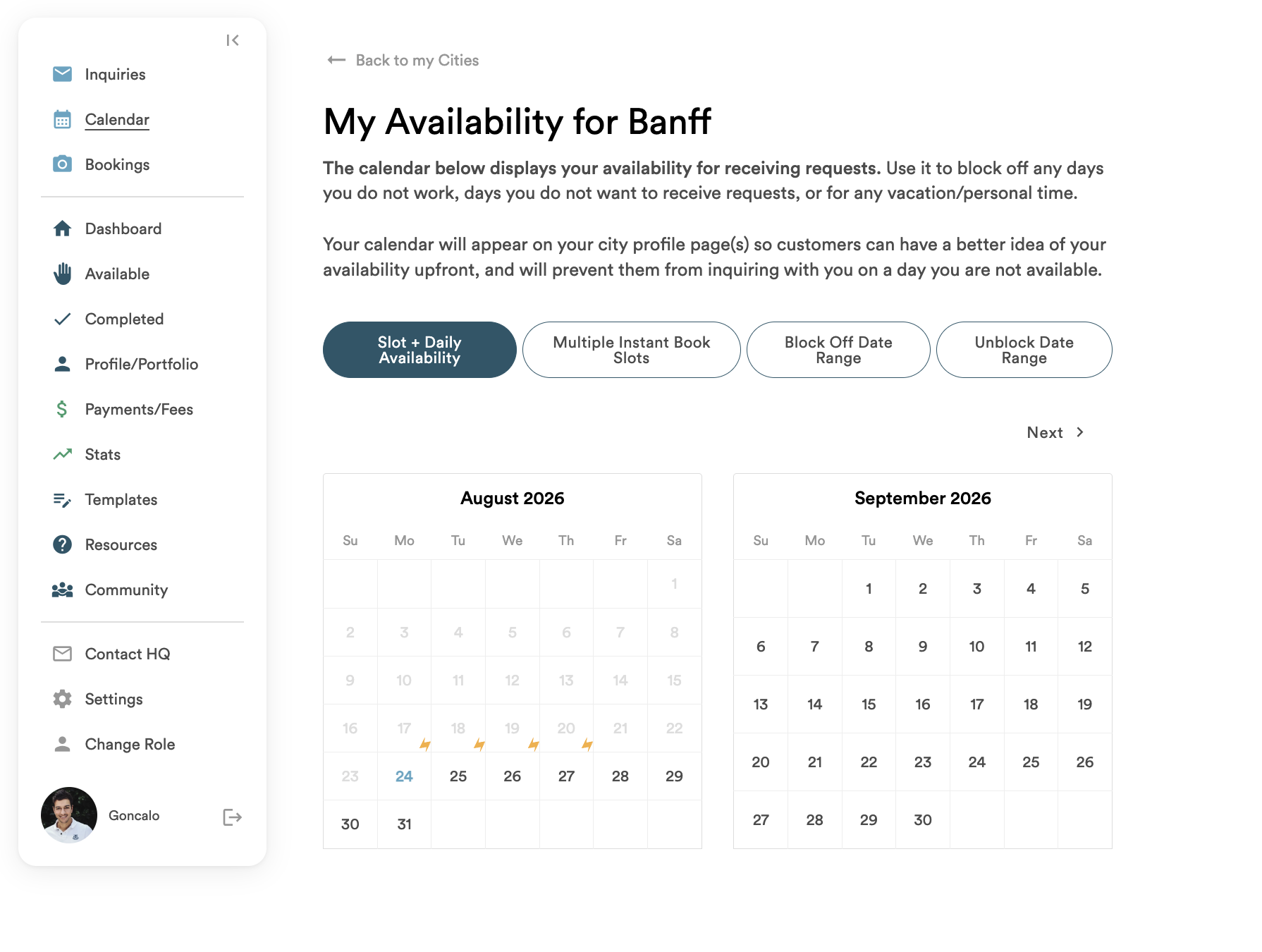
Block off time slots or create Instant Book slots by clicking a date.
Block a date range if you are unavailable for a number of days in a row. You can also unblock a date range if plans change.
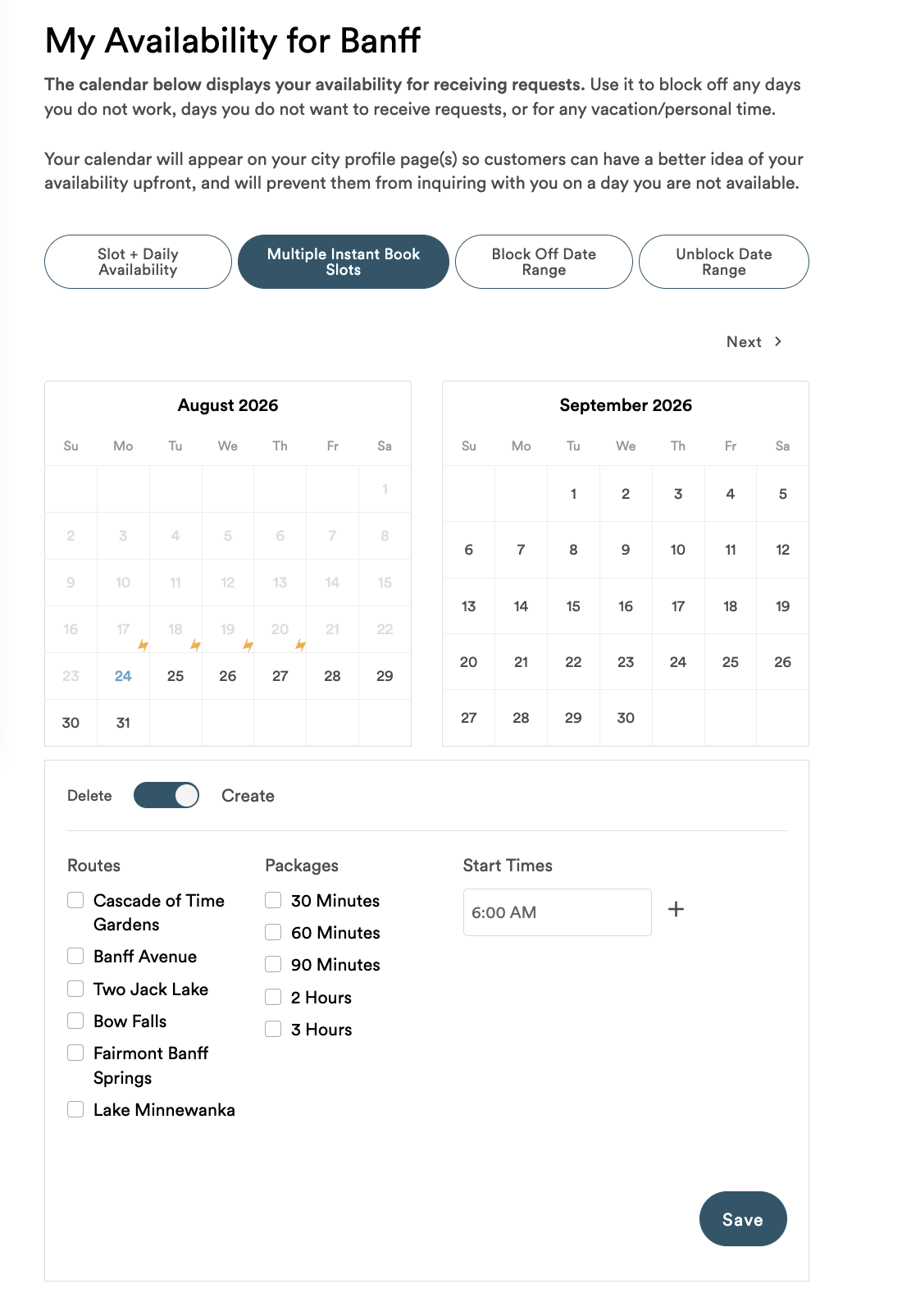
Easily create or delete multiple Instant Book slots across a number of days, routes and times.
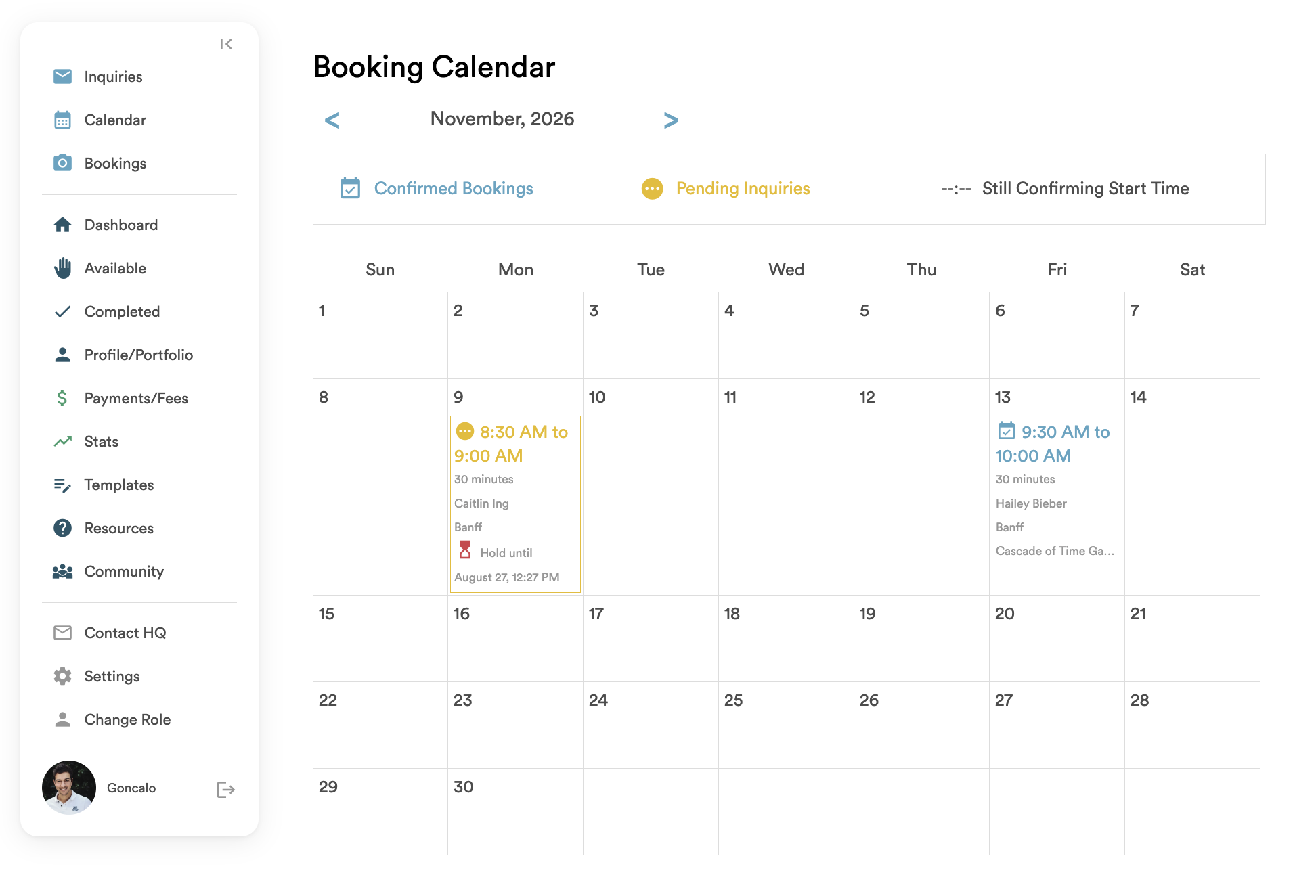
You can also access your Booking Calendar here to view all pending inquiries and converted bookings at a glance.
AVAILABLE
In some cities, we allow customers to book a confirmed date, time and route without a specified photographer. If booked for your city, these shoots will show up in your Available tab. The first photographer to Claim the shoot will become the photographer on the shoot
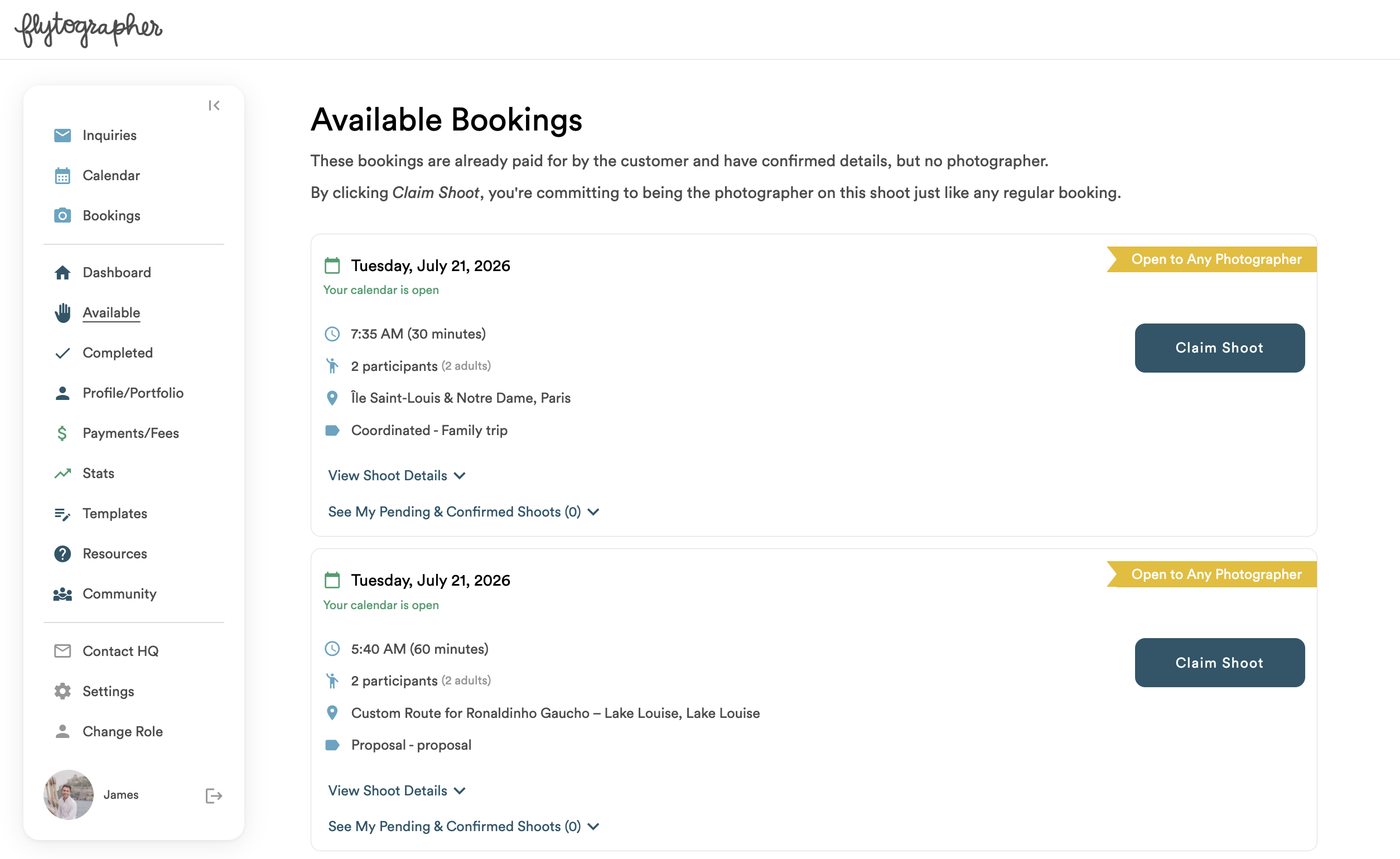
If you’re available for the date, time and route, click Claim Shoot to become the confirmed photographer on the listed shoot. Once clicked, both you and the customer will be connected and receive your emailed Shoot Scoops. After claiming, the shoot will appear on your Bookings tab just like any other confirmed booking.
PROFILE/PORTFOLIO
Prospective Flytographer customers want to see your best work. To increase your inquiries and bookings, we recommend you regularly update both your profile and portfolio to showcase your most recent work.
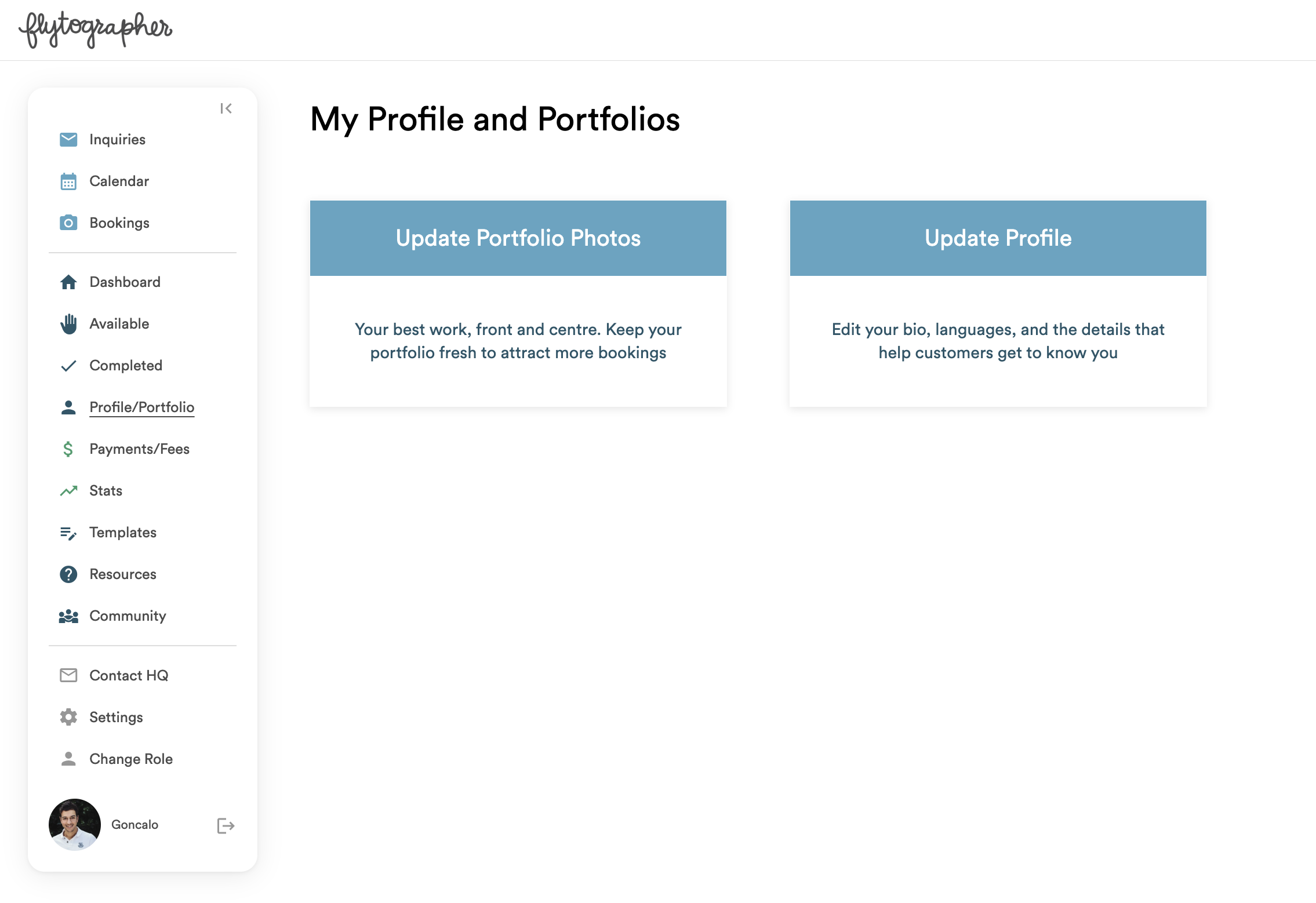
Both your portfolio and profile are city-specific. If you service more than one city, you’ll have the option select a city to upload the appropriate photos and make any profile changes.
For our best tips and tricks on what to include in your profile and portfolio, check out ourPortfolio Guide here.
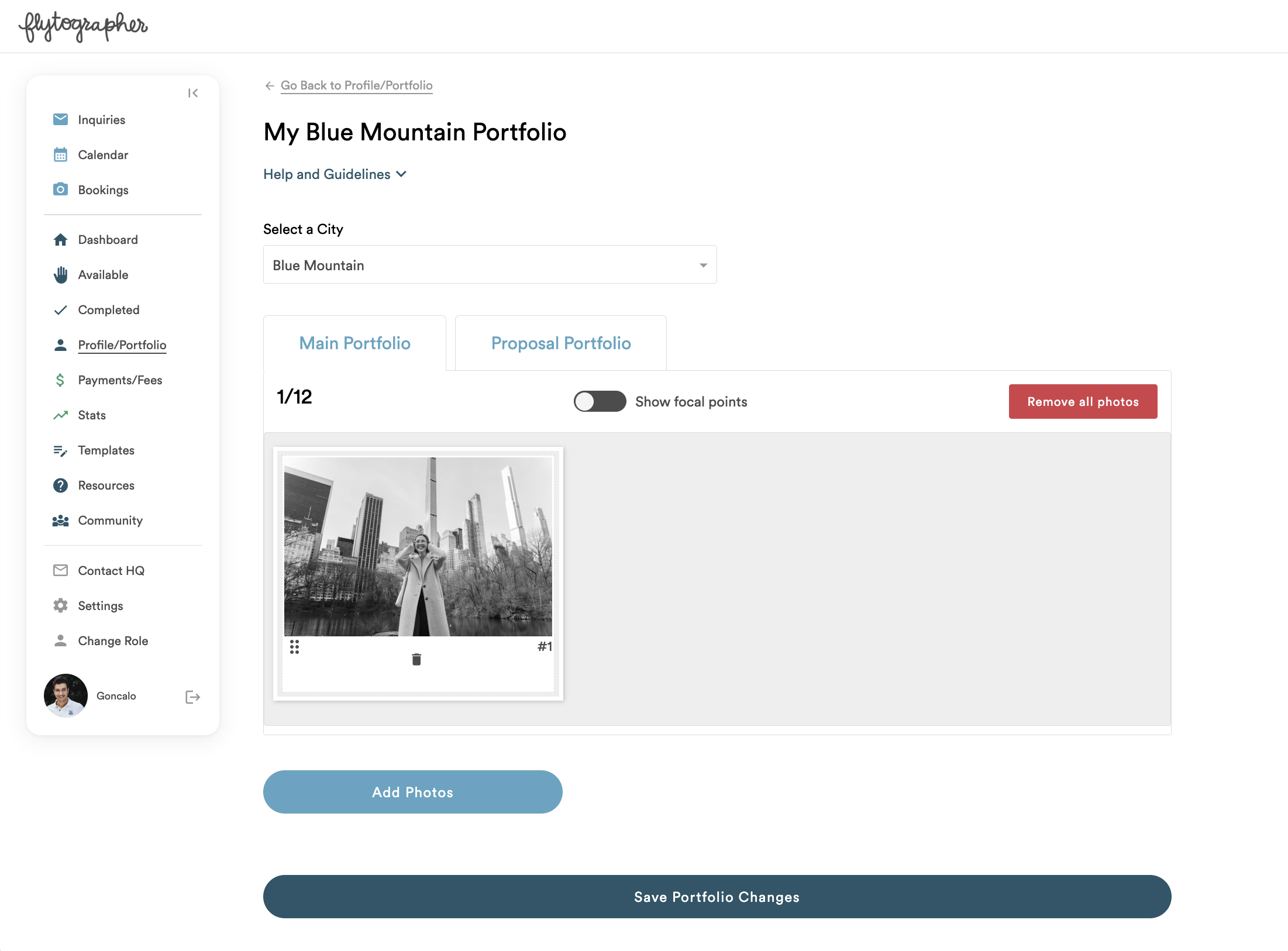
Portfolio criteria is listed in a dropdown on the form, along with a link to a helpful video and FAQ on focal points and ordering.

Turn on the focal point toggle to set a focal point for each photo in your portfolio – this helps us centre the image across all screen sizes. Turn off the focal point toggle to re-order your photos.
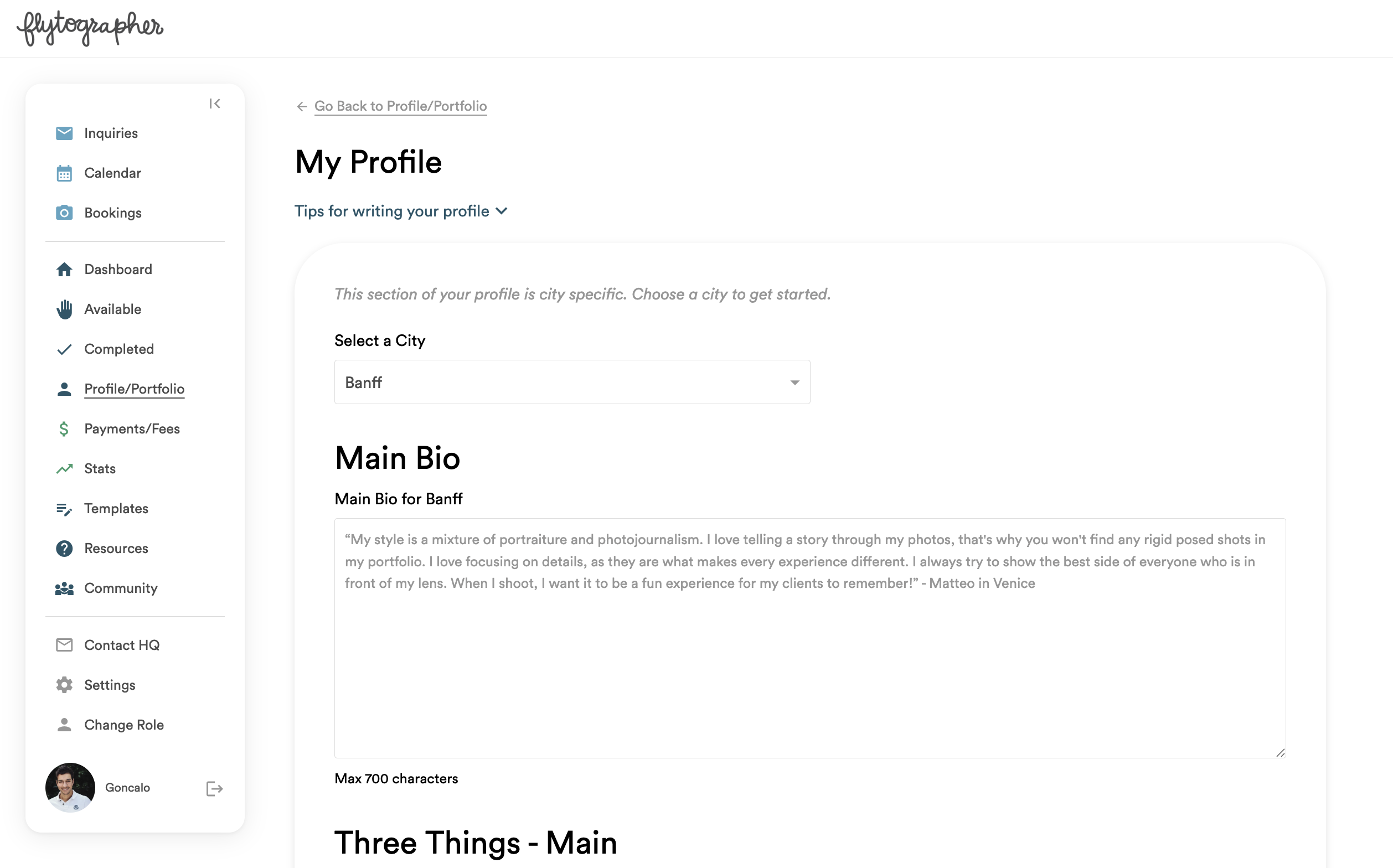
Your profile is the written information about you that we include on your public Flytographer page.
PAYMENTS/FEES
View all of your past and pending payments by booking name. Payments will show up here once you have delivered the photos. For Payment FAQs including how and when you will be paid, please visit this page.
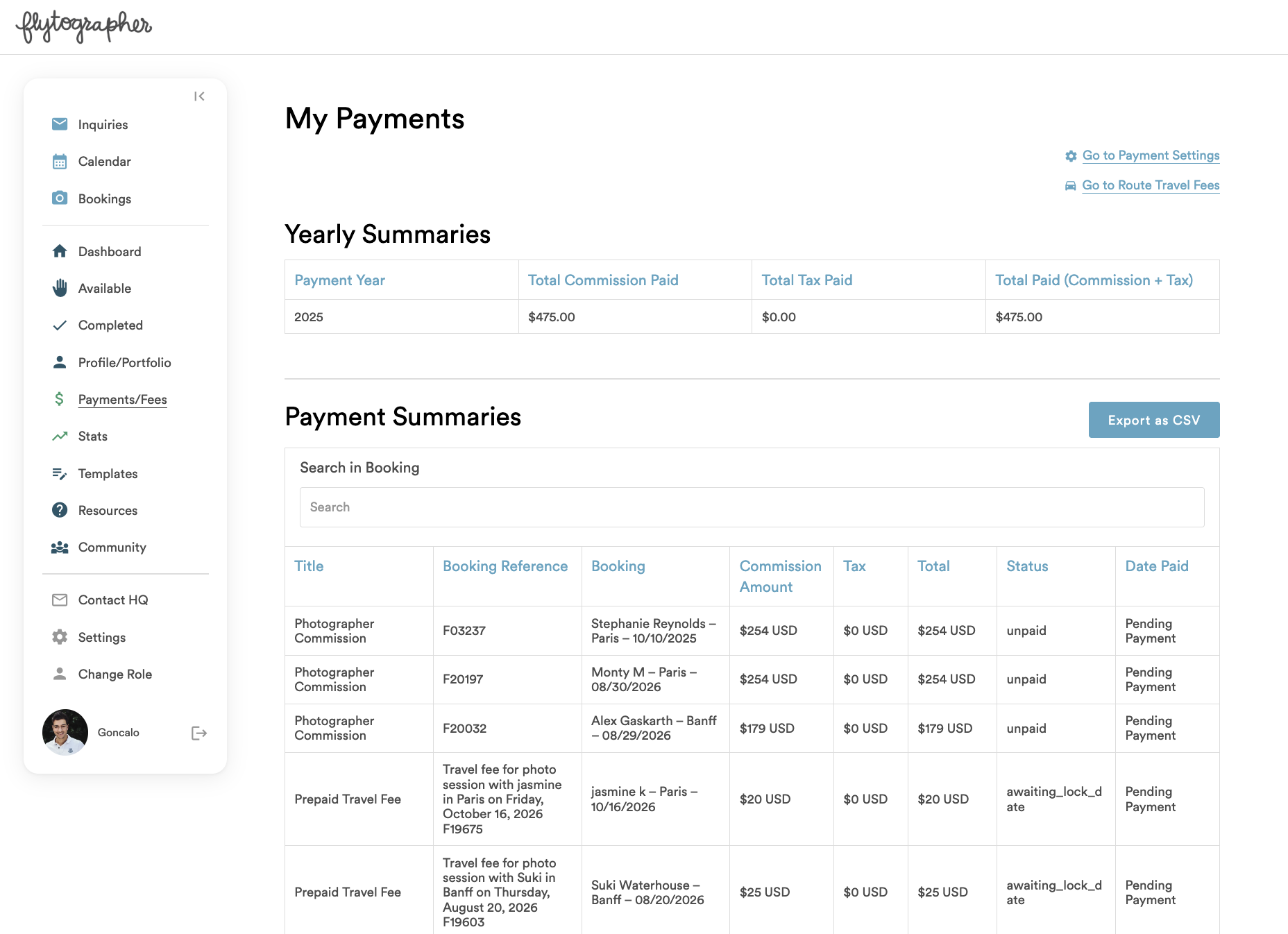
Tip: To search for a payment by different criteria (like booking name or payment status), click on the appropriate blue column header and then type in your search query.
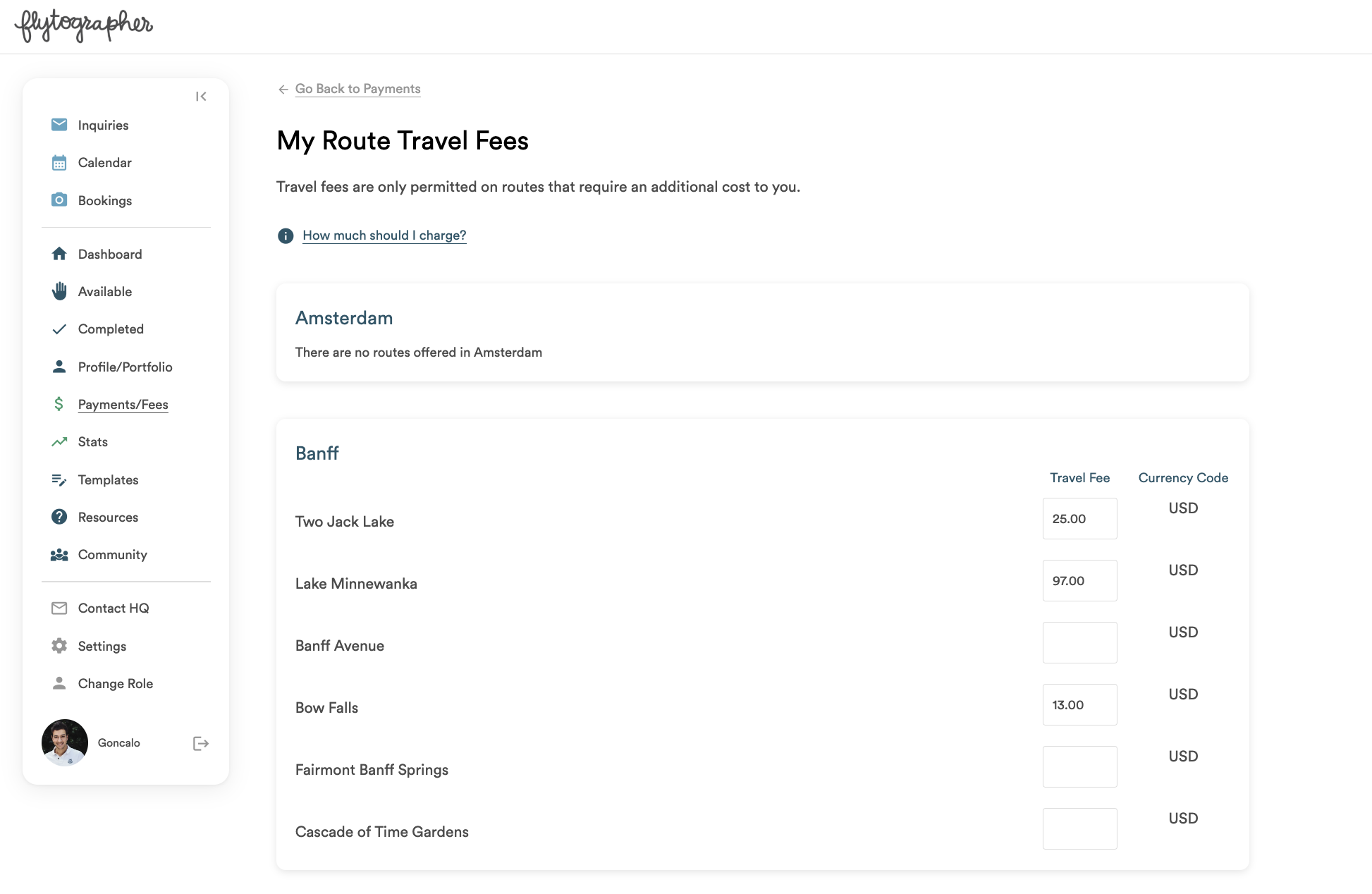
This is also where you can view and edit your Route Travel Fees and access your payment settings.
STATS
Review your inquiry response times and inquiry and booking rates compared to the city average. You can also review the comparative popularity of our routes and shoot seasonality in your city.
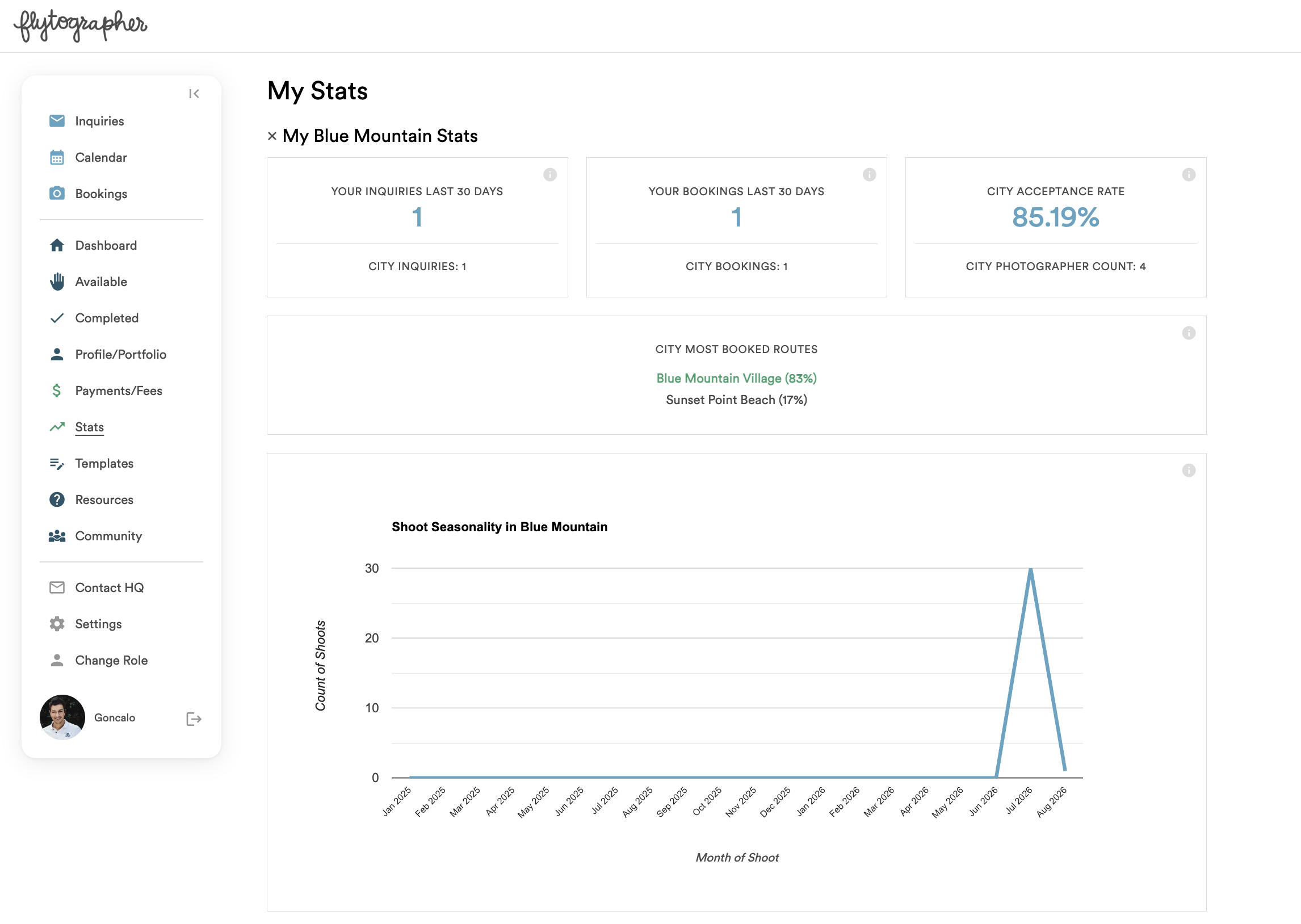
The quicker you can respond, the higher the likelihood you can book the shoot! Response rates should be 100% – please always respond whether you can take a shoot or not so that customers are never left waiting.
These stats are not made public to customers.
RESPONSE TEMPLATES
Create and edit templates for your inquiry response comments to save time when responding to inquiries.
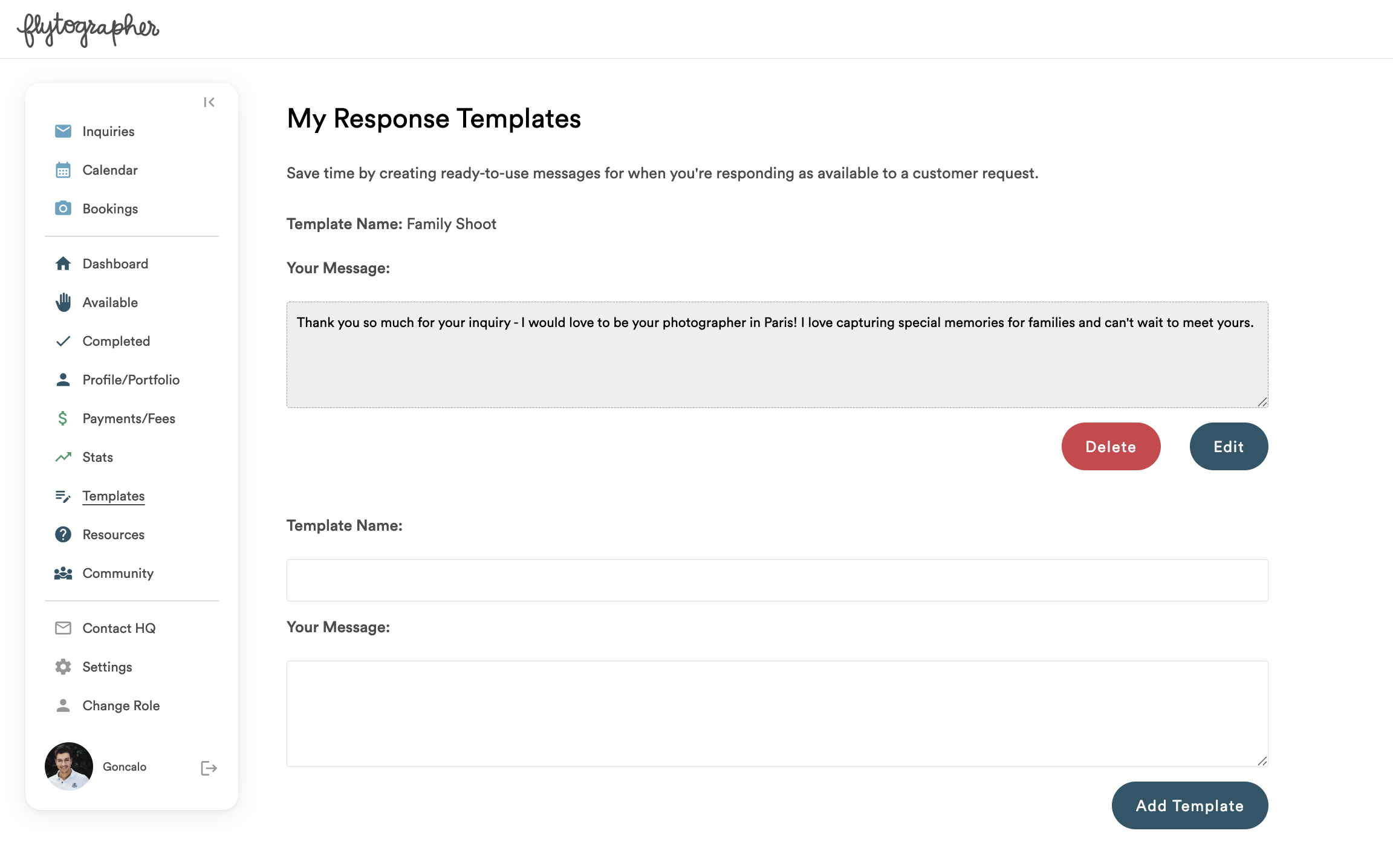
Create multiple different templates to help you respond to all different types of inquiries such as family vacations, anniversaries, proposals, and more. When responding to an inquiry, you’ll have the option to select one of your templates and edit it to fully customize your response to each customer.
RESOURCES
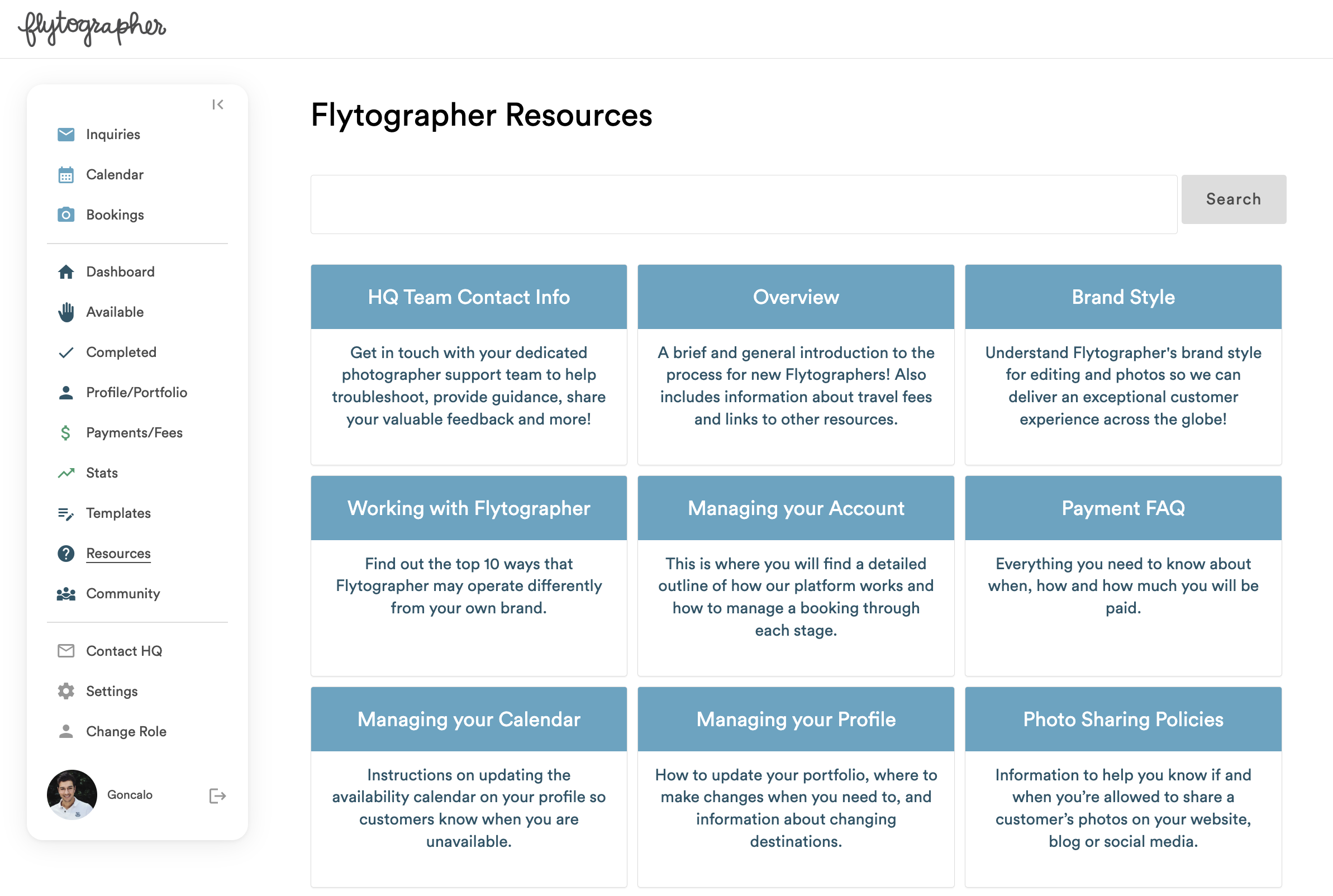
If you have questions about policies, processes, or our platform, you can find exactly what you need here. We have curated this set of resources just for you, and keep them up to date with any platform and process changes. This is where you’ll find instructions, time-saving strategies, and tips for success.
Use the search bar to find what you’re looking for!
COMMUNITY
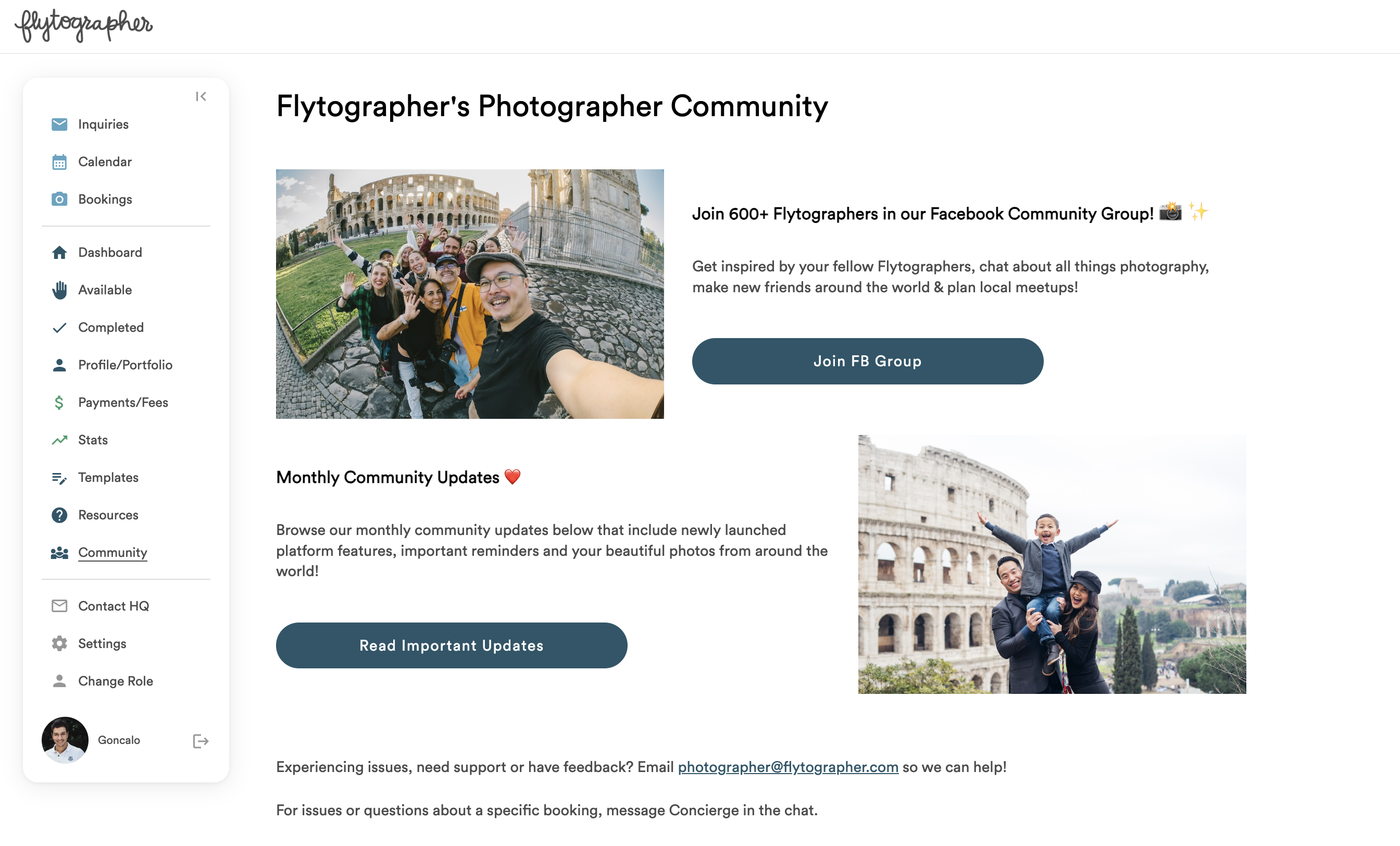
Connect with our incredible community of global photographers through our private Facebook group!
This is also where you can access all past photographer email newsletter announcements. Not receiving our monthly photographer email newsletter? Let us know and we’ll make sure to get you back on the list!
CONTACT HQ
We are always here to help! Whether your have a question, concern, feedback, or just want to chat, we’d love to hear from you! This is where you can find contact information for everyone on our Photographer Support Team.
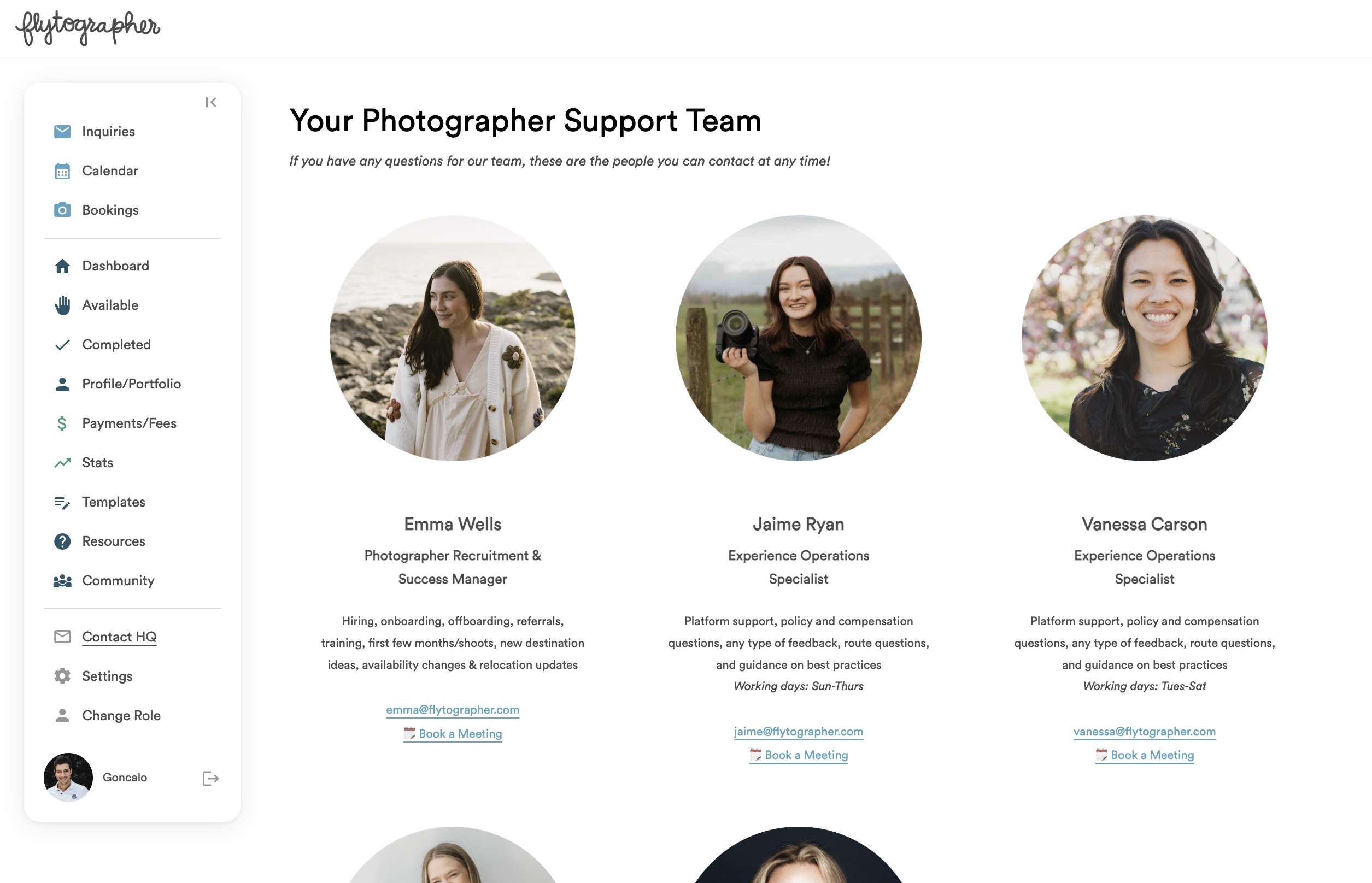
Send us an email, or book a video call with us to talk face to face. We can’t wait to hear from you!
SETTINGS
This is where you can fill in your personal details as well as manage your payment settings, email address, mailing address, emergency contact and more.
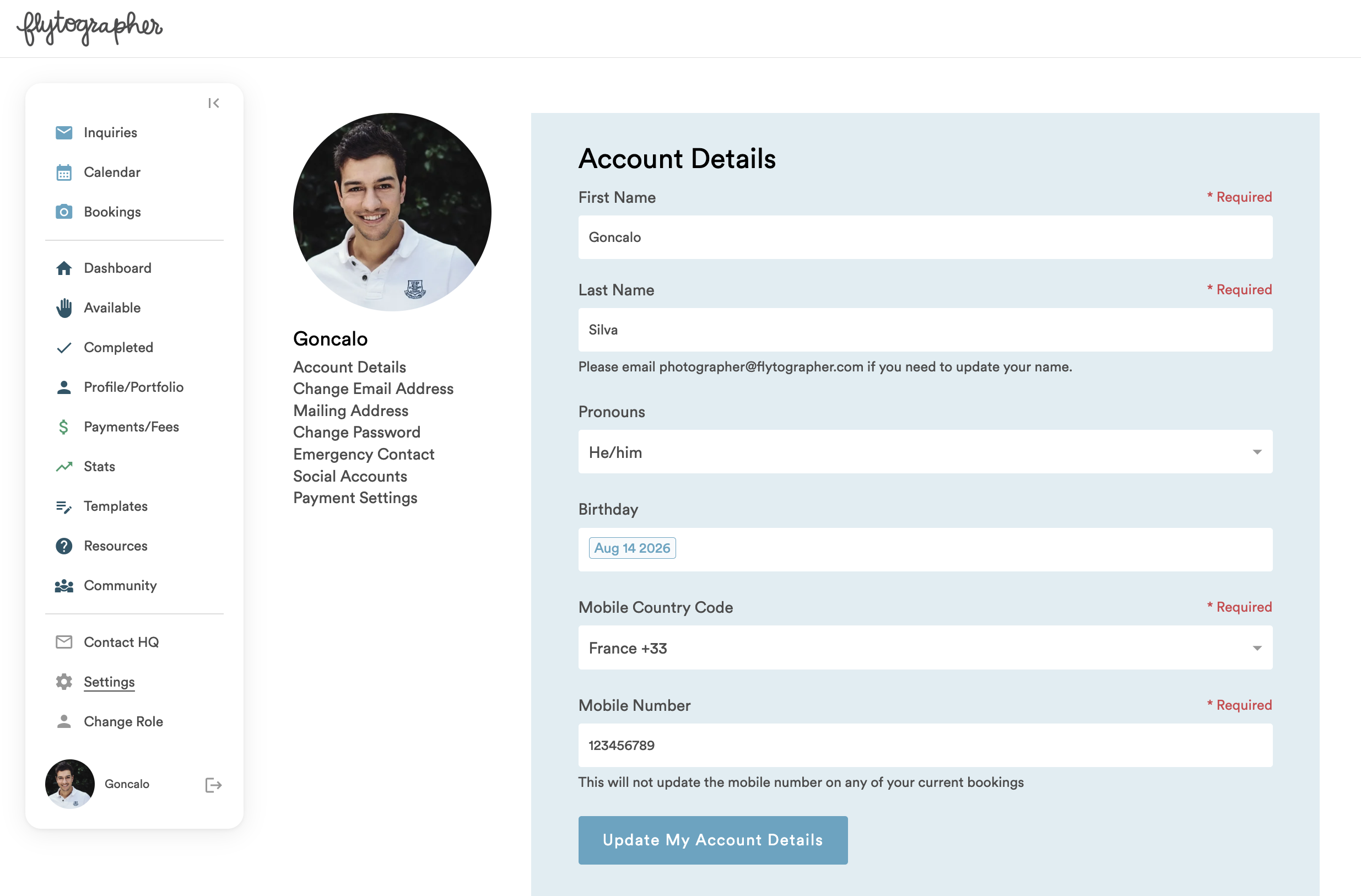
Edit Profile Photo: Click into your existing profile photo to edit it.
Account Details: Name, pronouns, birthday, and mobile number.
Change Email Address: Change the email address attached to your account with us.
Mailing Address: Change your mailing address – we’ve been known to send gifts, so you’ll want to keep this up to date!
Change Password: Keep it secret, keep it safe.
Social: Instagram and Twitter handles.
Emergency Contact: Let us know who we can contact in the event of an emergency.
Payments: Update payment information (how-to here).
MOBILE VIEW
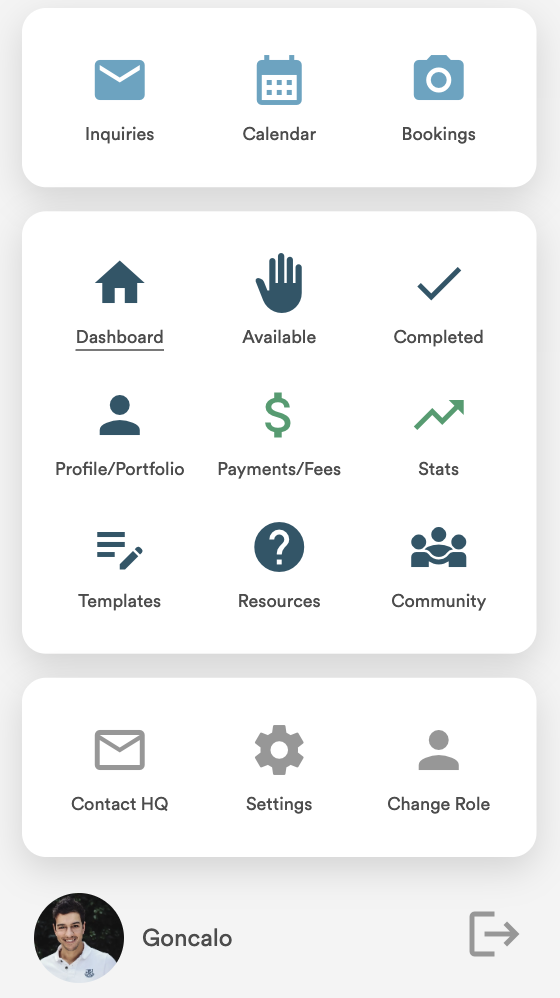
The mobile view is slightly different as we needed to squeeze in everything on a narrow screen. Open up the hamburger menu at the top right to access all tabs.
Unlike on desktop, you have a “main” page for each shoot on mobile, with buttons to switch over to shoot details and chat box.
INQUIRY & BOOKINGS FAQ
Q: I received a notification that I had an inquiry, but when I went to my dashboard, it had disappeared. What happened?
One of three things:
- you didn’t respond within 24 hours (or less if shoot inquiry is last minute)
- the customer decided to cancel
- the customer selected and booked with a different photographer
Q: I see icons on some inquiries and not on others. What do they mean?
A ring icon indicates this is a Proposal inquiry. Learn more about capturing proposals on our Proposal Guide.
A face icon means it is an Influencer shoot. Learn more about influencer bookings on our Influencer Guide.
A group icon means it is a Coordinated shoot. This means a travel agent is managing this booking for their clients.


Q: What does the expiry date on the inquiry form mean?
After you have agreed to a date at the inquiry stage, we ask you to hold that date in your calendar for 3 days while we give the customer time to book. The expiry date indicates when you can release the dates from your calendar if the inquiry did not convert.

Q: I want to book my own shoot. How does this work?
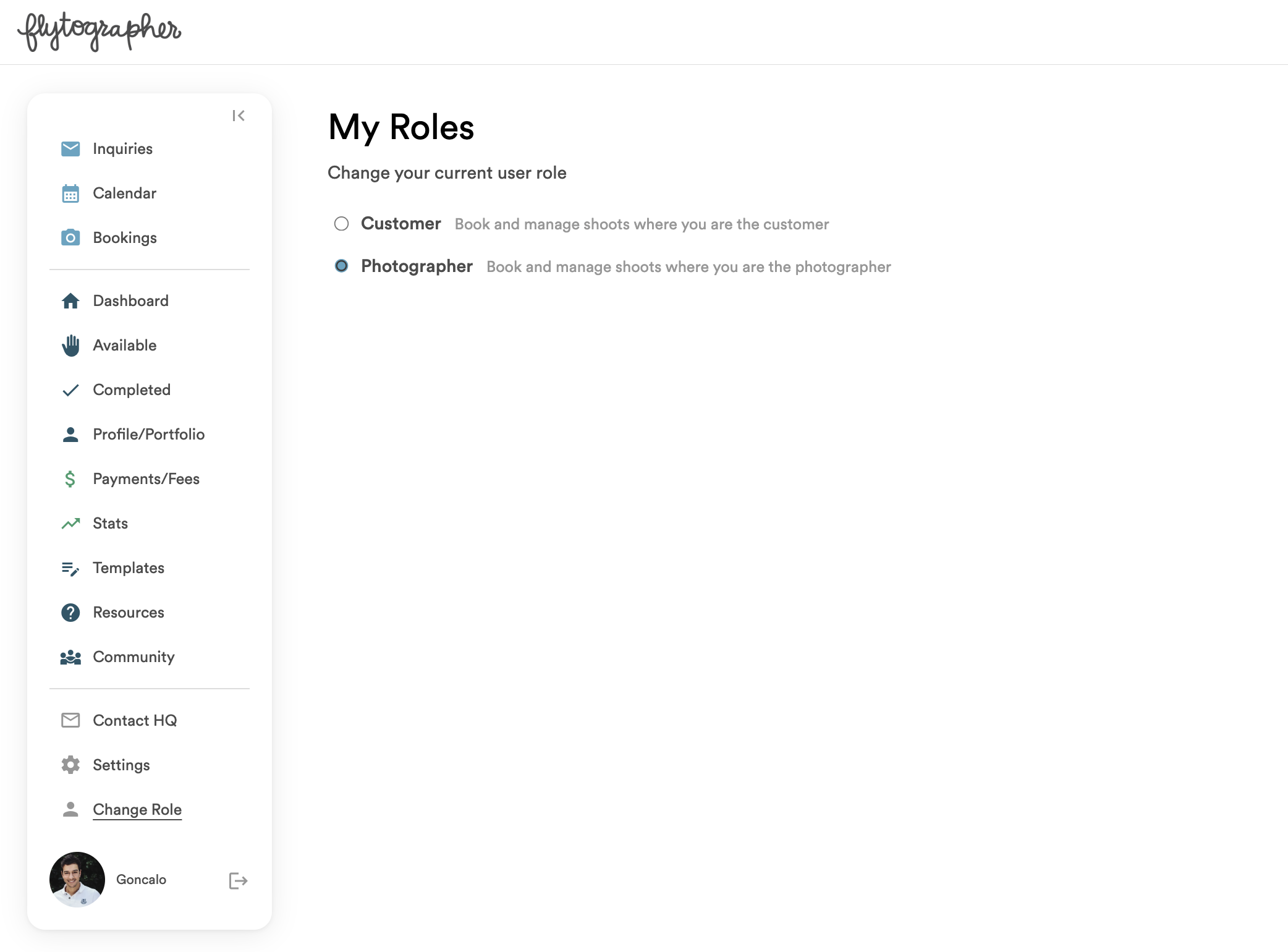
To create an inquiry, change to your Customer role through the Change Role tab. We have team discounts for your own Flytographer shoots (and for your friends and family)! Find out more information here.
Q: I’m having technical issues or want to submit feedback.
On your dashboard home page, use the assigned buttons and we’ll get back to you as soon as we can! To make it easy, we’ve also included the buttons below.