
Your Availability Calendar allows you to block off whole days or half days (ie. morning or afternoon blocks) if you are not available for work. Customers will see your availability displayed on your profile and will only be able to select dates/times that you have not blocked off.
🌟 It is very important that you update your calendar on a regular basis so customers have an accurate view of your schedule. It is a very frustrating experience for customers to inquire about a date that looks available only to find out it’s not. We’ve learned that customers may not end up booking you or Flytographer at all because of that frustration, so please keep your calendar updated to ensure you get as many shoots as possible.
You MUST accept or decline every inquiry that comes to you. Keeping your calendar up to date — by blocking unavailable dates — helps you avoid receiving inquiries you’ll have to decline.
Starting with a reminder on how to respond to inquiries, this guide explains how to adjust your Availability Calendar with your daily availability, recurring availability, and Instant Book slots.
REMINDER ON RESPONDING TO INQUIRIES
- You will be given 24 hours to respond to all customer requests. Our data and industry trends show that customers are more likely to book if they receive a fast response.
- If you do not respond within 24 hours and there are other available photographers in your city, at that time we will check with the other photographers to see if they are available and also give you another 24 hours to respond.
- If you respond as unavailable to a request and there are other available photographers in your city, we will check with other photographers at that time.
UPDATING YOUR CALENDAR AVAILABILITY
- Go to Calendar in your main menu to view and edit your availability calendar
- You can also access your calendar through the Availability Calendar link on your home dashboard
- First, select the city calendar you want to update – if you work with us in multiple cities, each city will have its own calendar
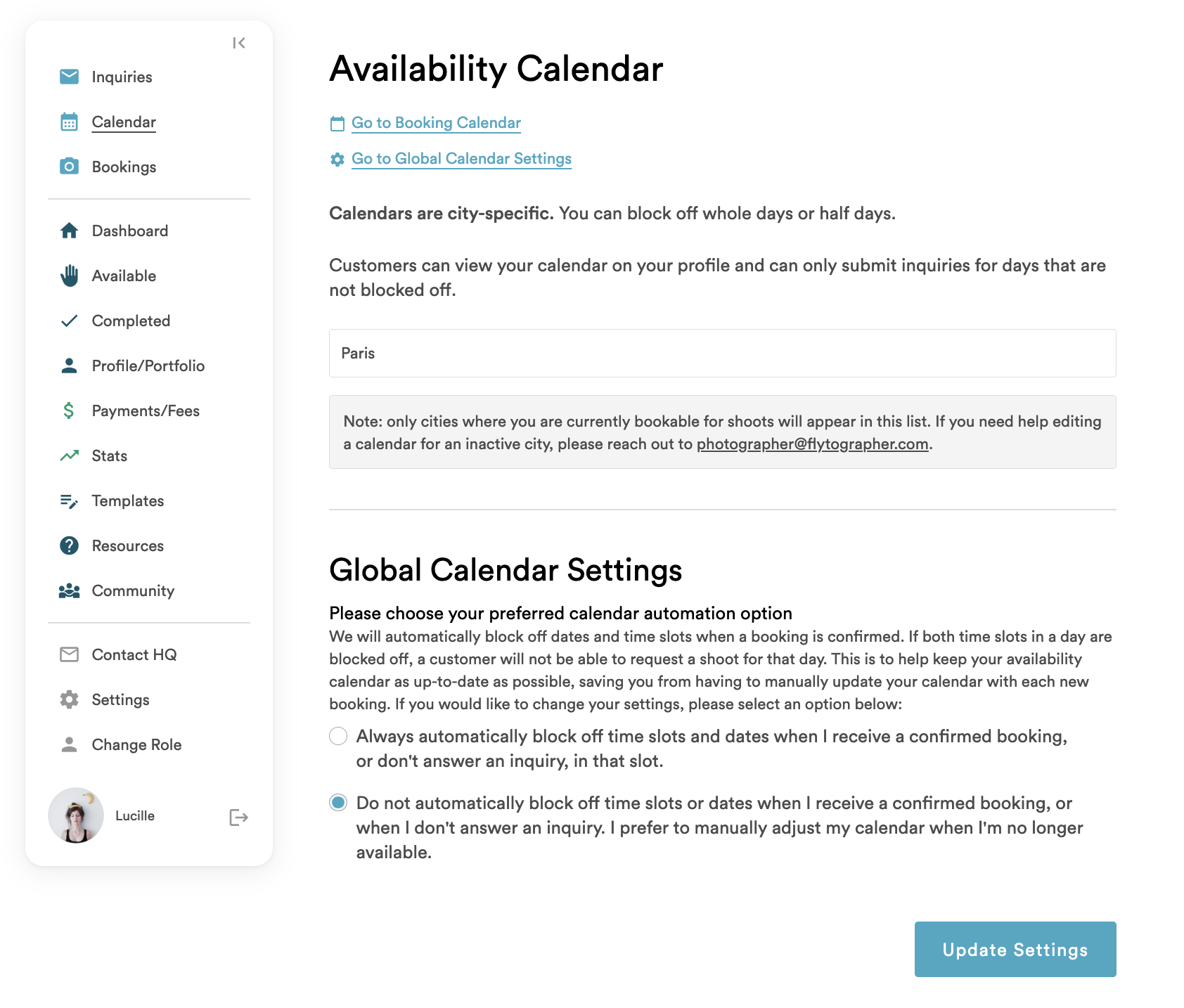
- Once on a city calendar, you will have the following update options
- Add, edit or remove Instant Book slots on a single day
- Set morning and/or afternoon availability on a single day
- Create or delete multiple Instant Book slots on multiple days
- Set multiple morning and/or afternoon availability on multiple days at once
Each option is described and pictured below
SLOT + DAILY AVAILABILITY
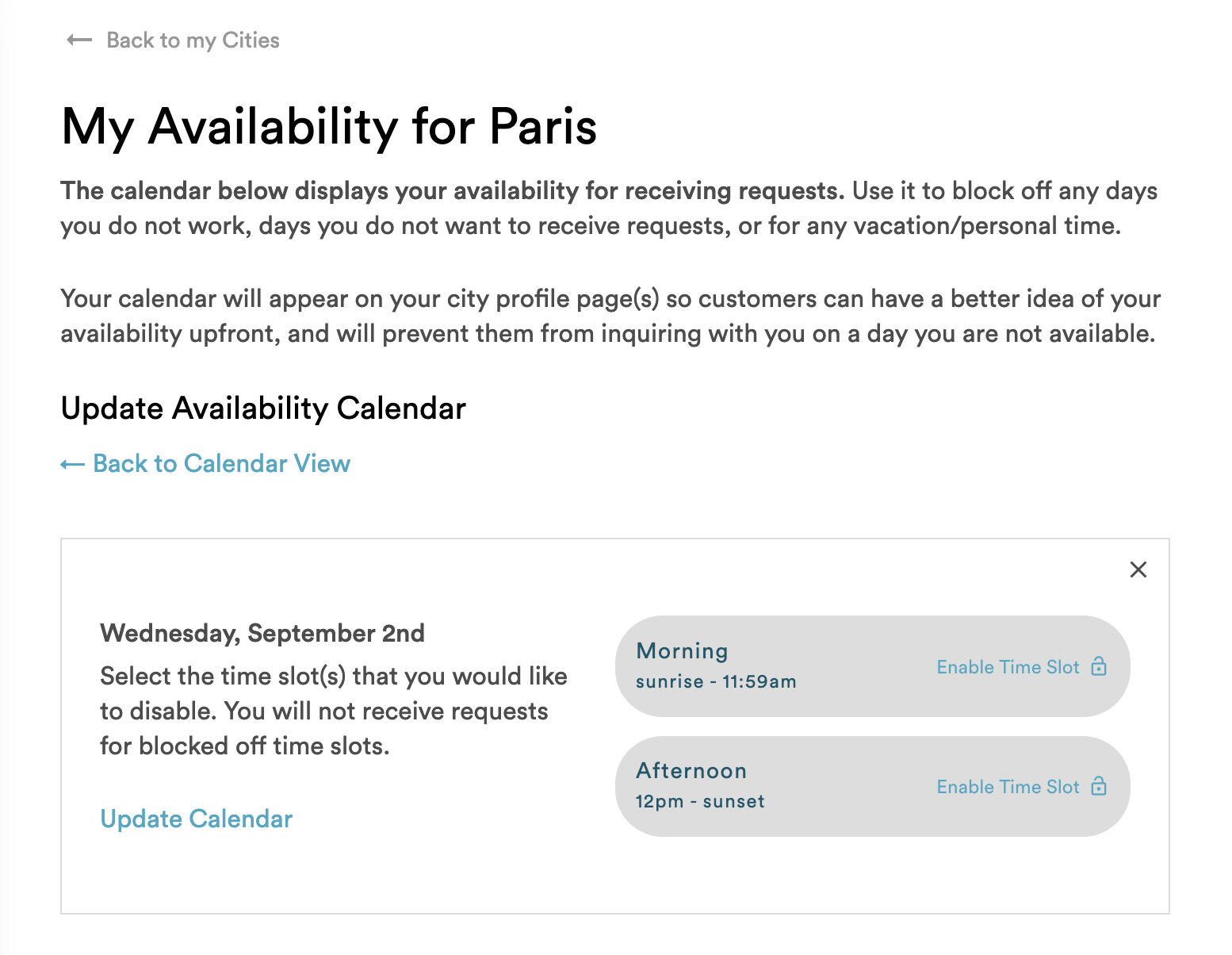
- In Slot + Daily Availability mode, navigate to your desired month and click a date to add, edit or delete Instant Book slots for that date, or block or unblock your morning and/or afternoon availability for that date.
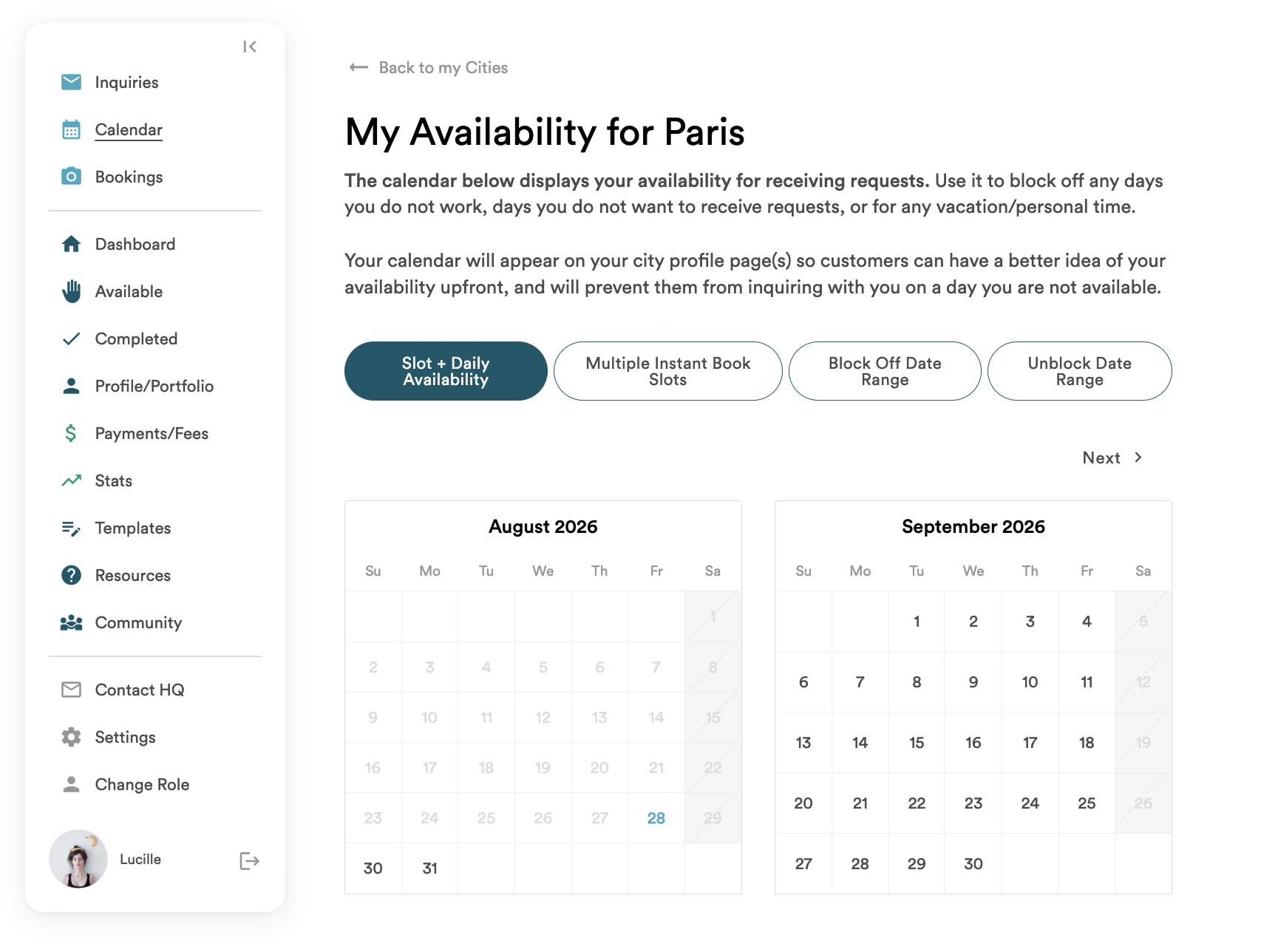
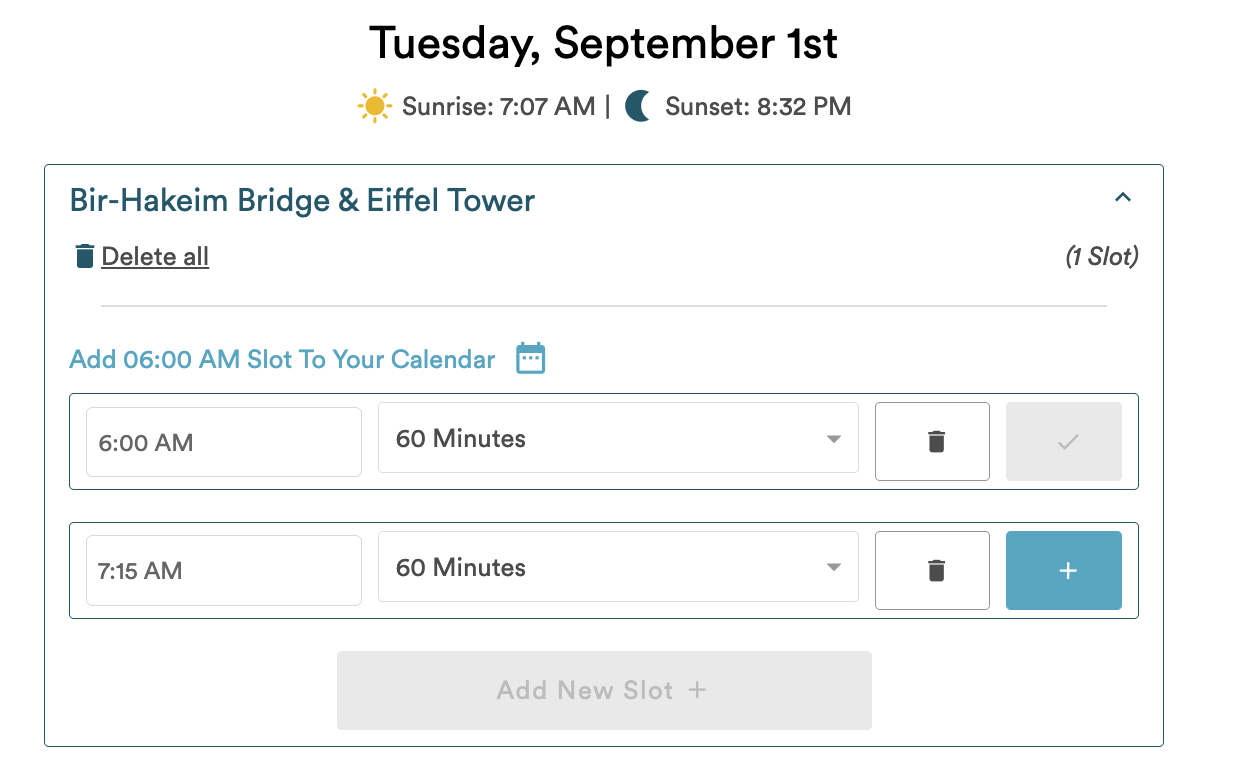
- In this mode, you can add Instant Book slots for your selected day by selecting the route for that slot and adding a start time and shoot length.
- This is also where you can delete individual Instant Book slots, or all slots on one day per route.
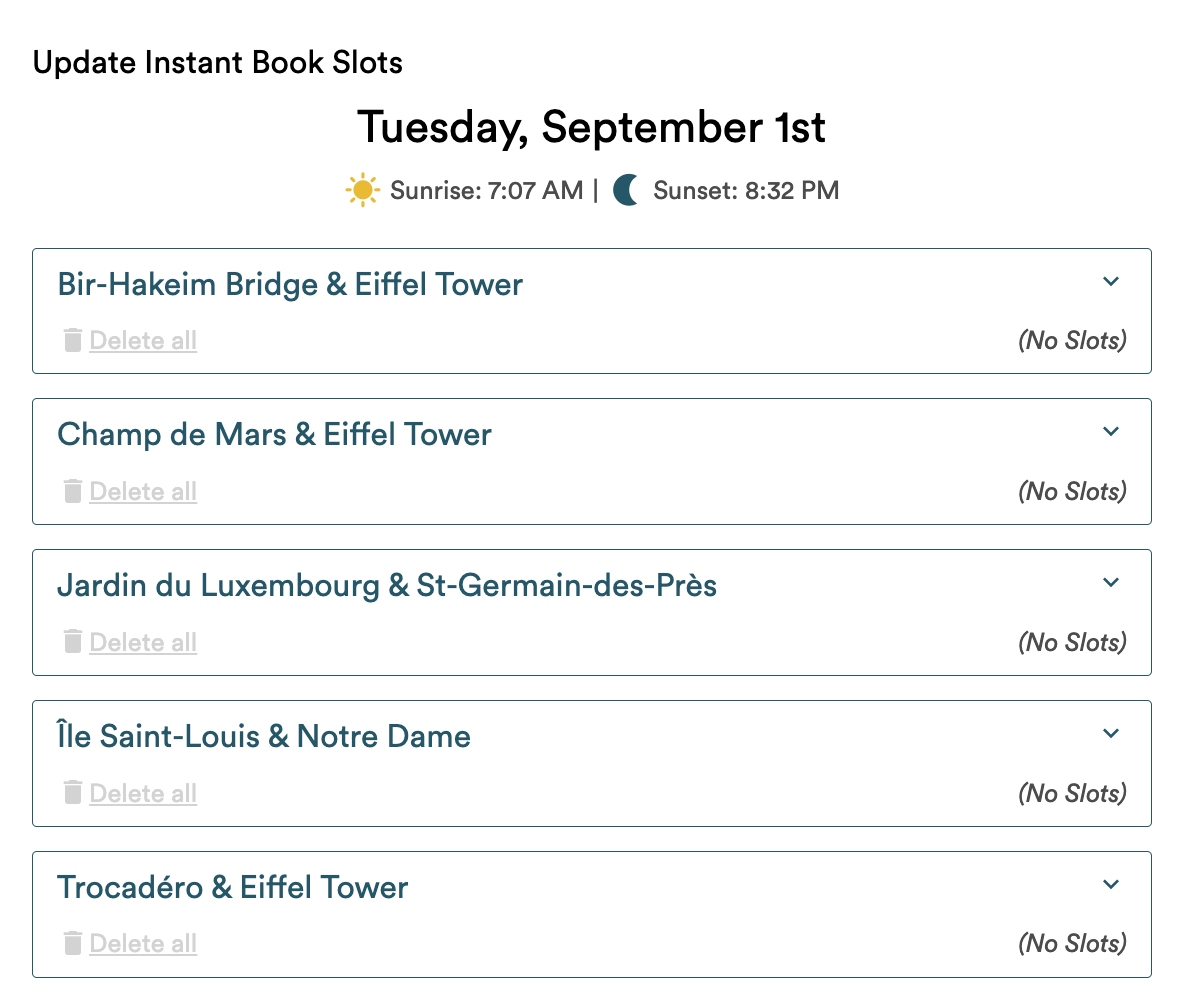
- From this single date view, you’ll also have the option to mark all matching days of the week to have the same morning and/or afternoon availability.
- Make sure you click Update Calendar to save your changes.
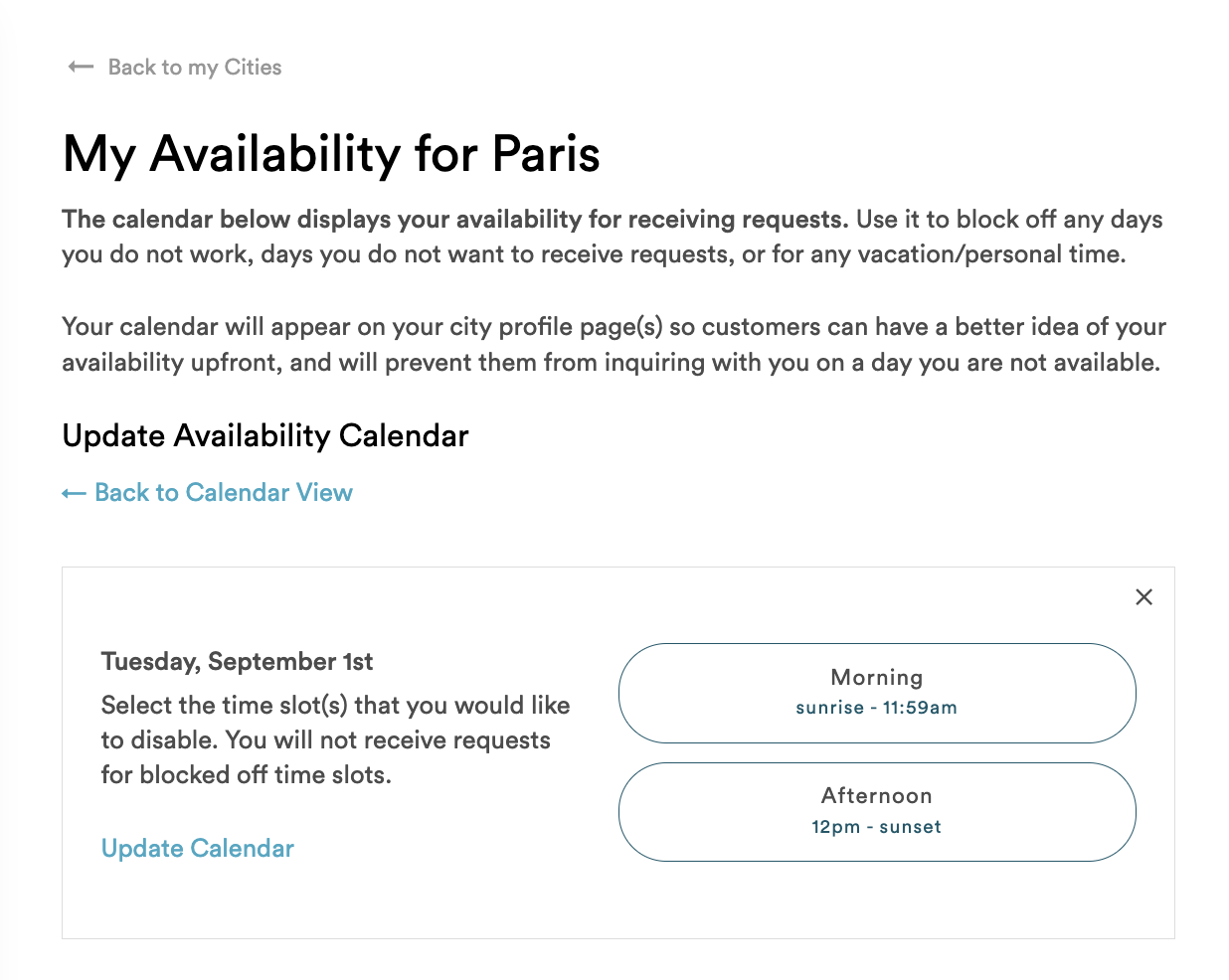
- For example if the date you click on is a Tuesday and you are marking the morning as unavailable and the afternoon as available, you’ll have the option to mark all Tuesdays from that date forward with the same availability
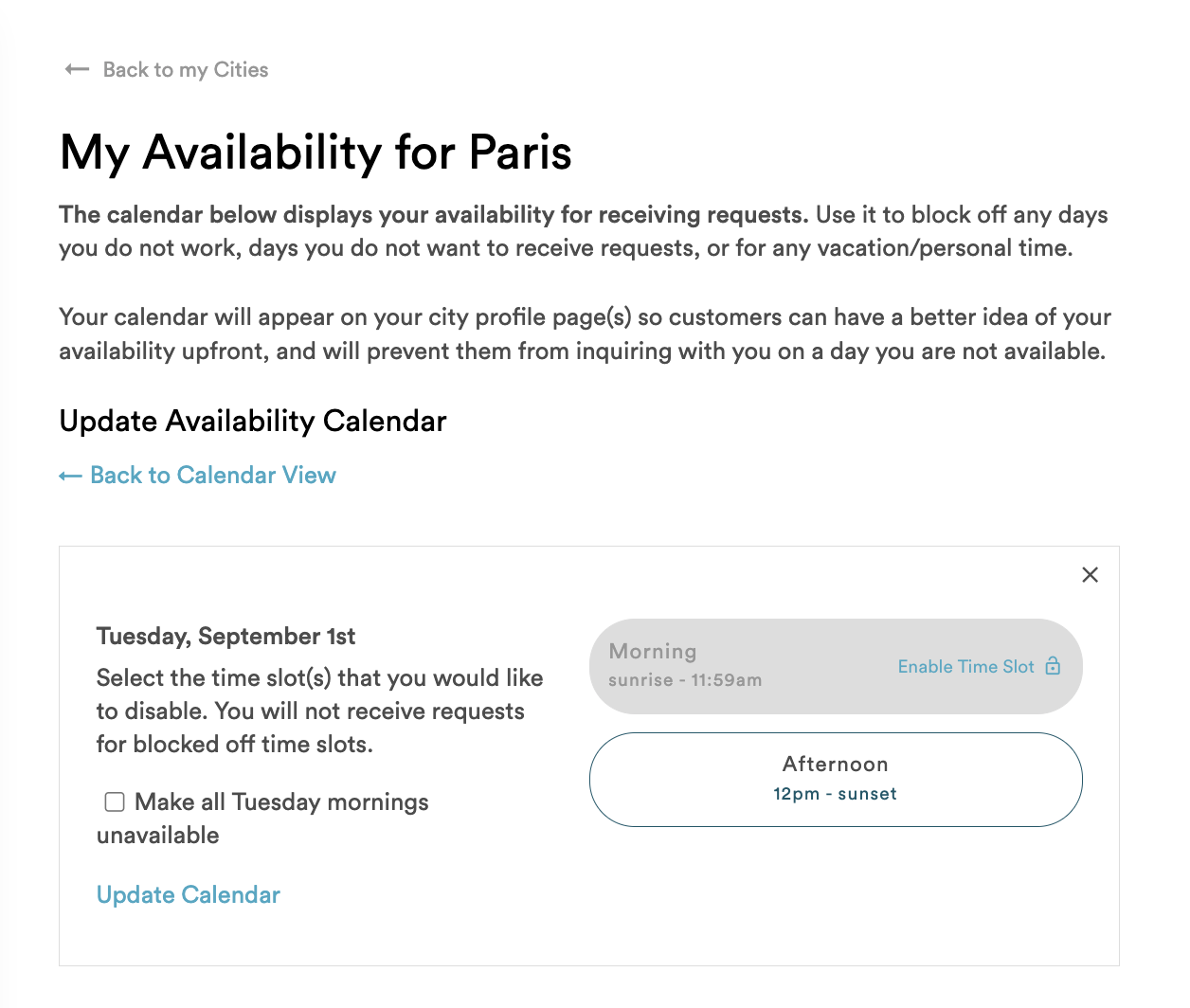
- To block off the whole day, set both the morning and afternoon as unavailable.
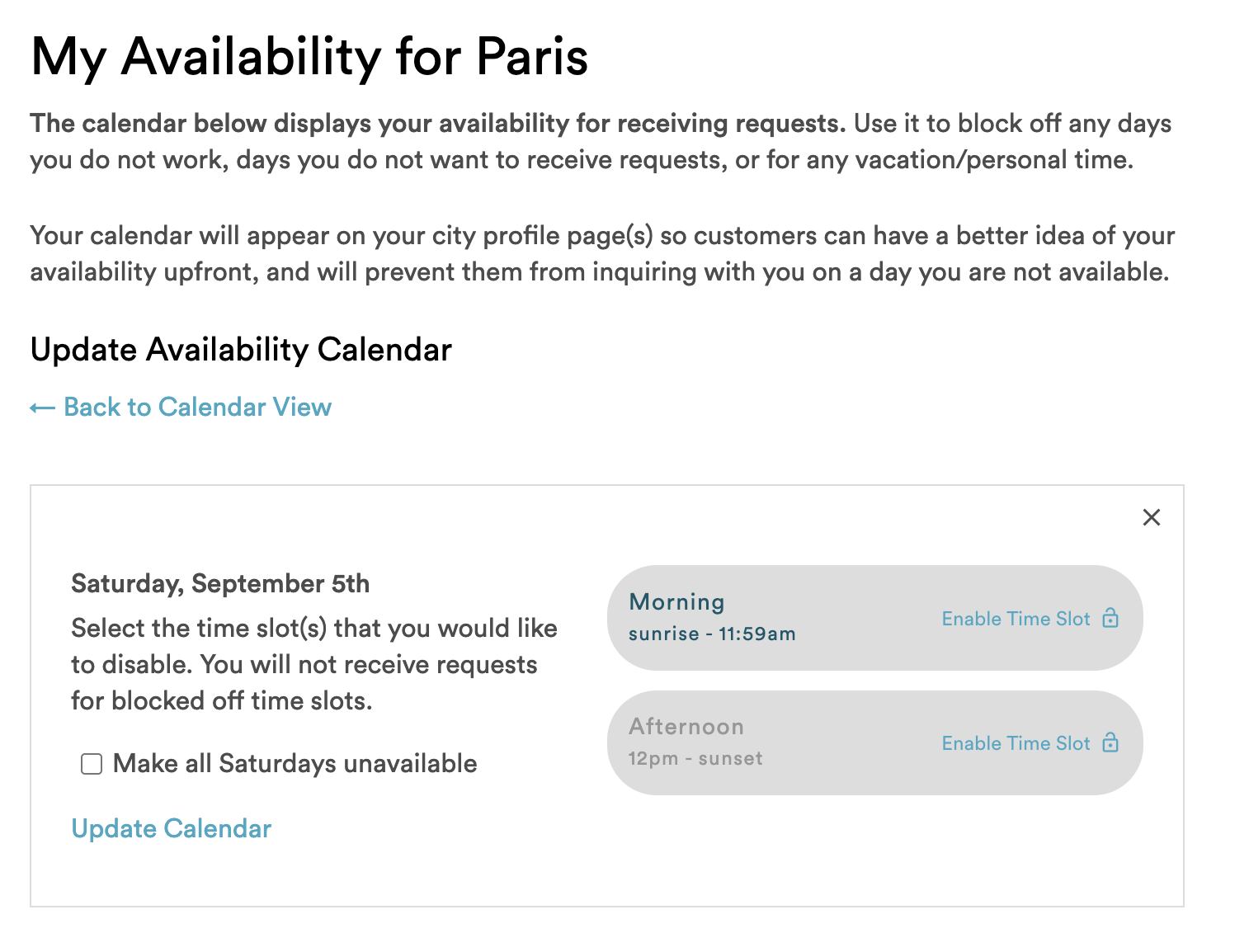
- To open up a recurring unavailable day of the week, check the Make all DAY available box.
- Make sure you click Update Calendar to save your changes.
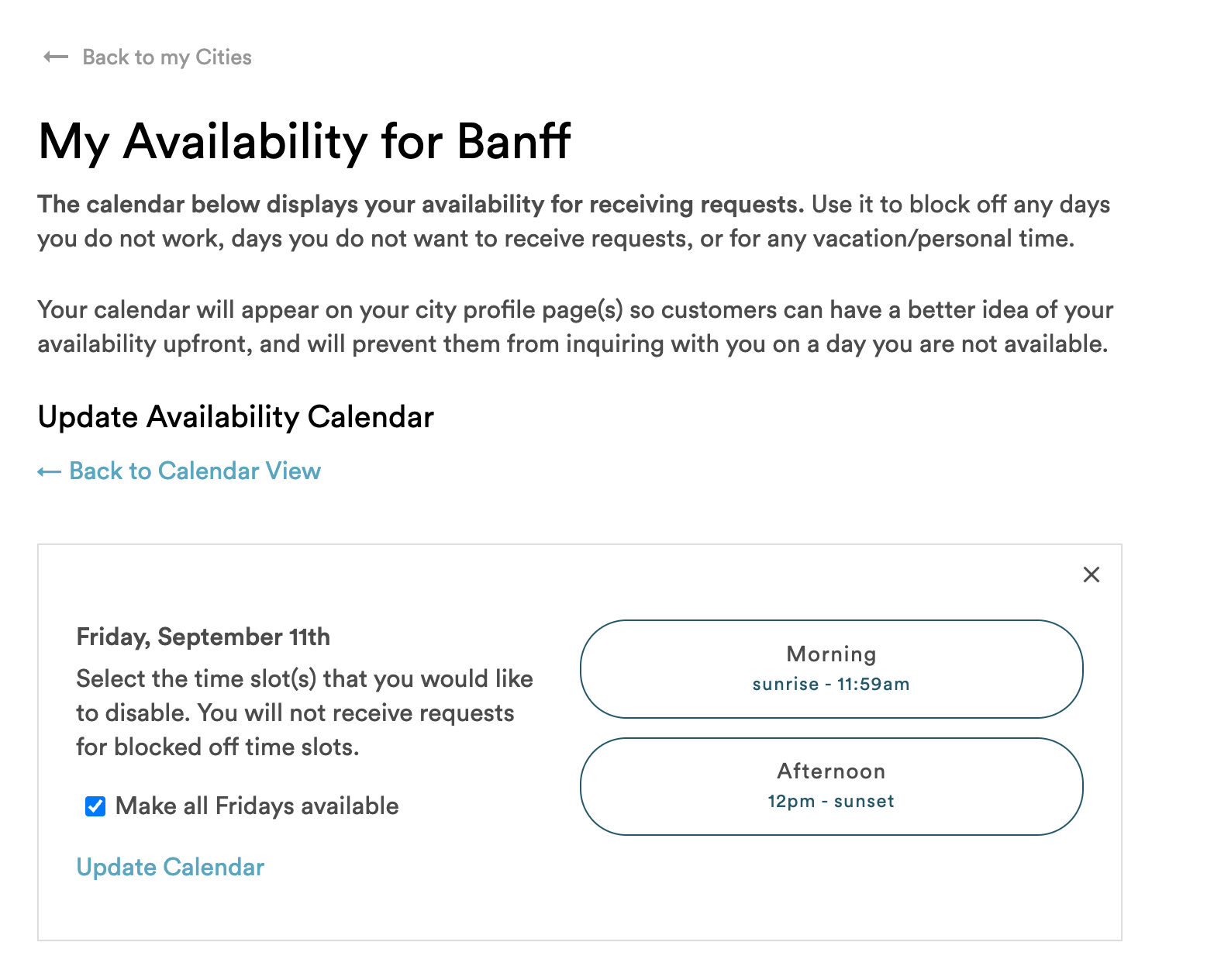
- To make a single blocked off day available, click Enable Time Slot and then Update Calendar
MULTIPLE INSTANT BOOK SLOTS
- In Multiple Instant Book Slots mode, navigate to your desired month and click all of the dates that you want to add Instant Book slots on.
- On the form you will see below, select one or more routes, one or more package lengths, and add one or more start times.
- By clicking save, we will automatically create Instant Book slots on all of your selected dates, for all of your selected routes, selected packages, and entered start times.
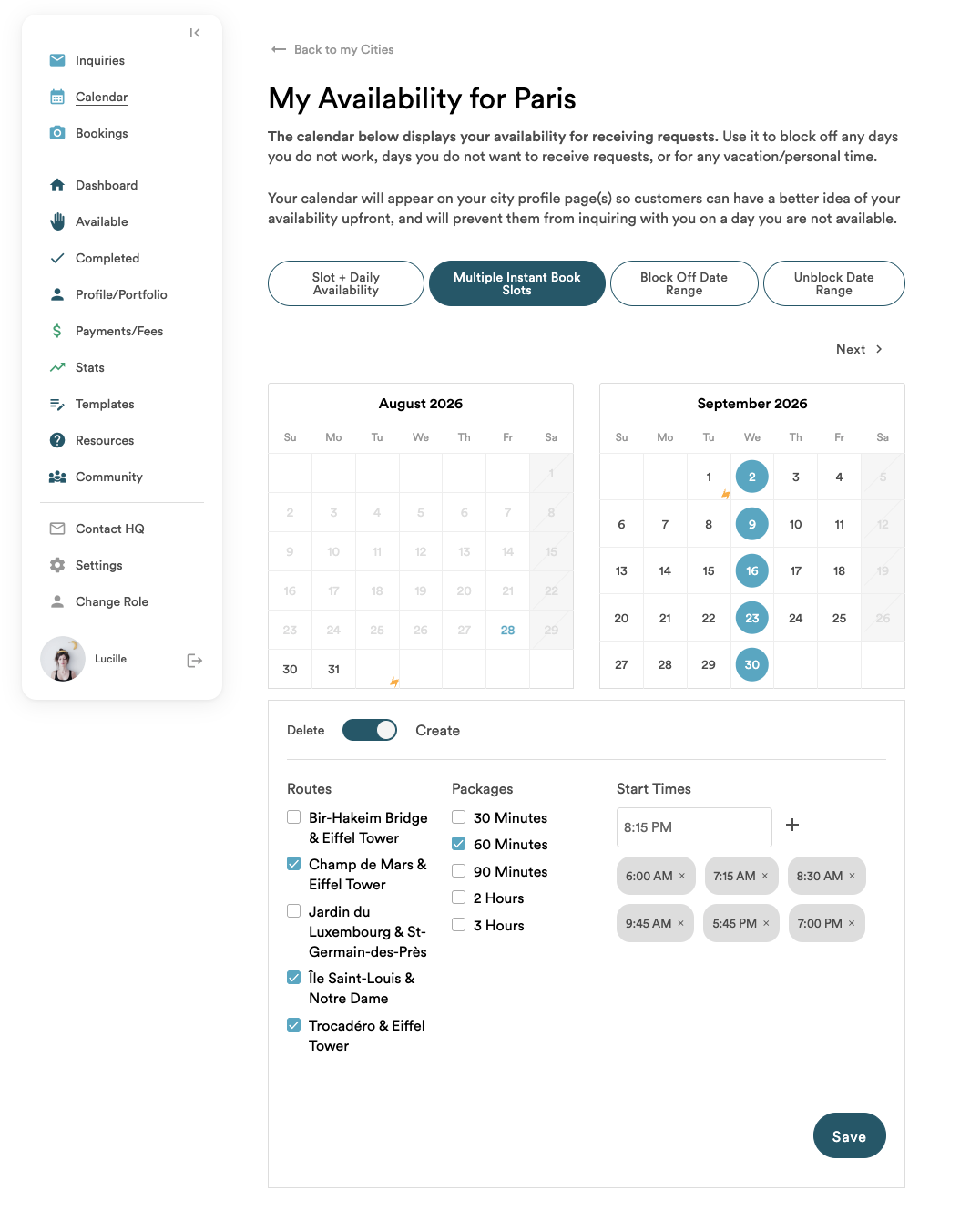
- The form defaults to create mode, but you can toggle to Delete mode to delete all of the Instant Book slots on your selected dates.
- To delete individual Instant Book slots, review the Slot + Daily Availability details above.
BLOCK OFF DATE RANGE
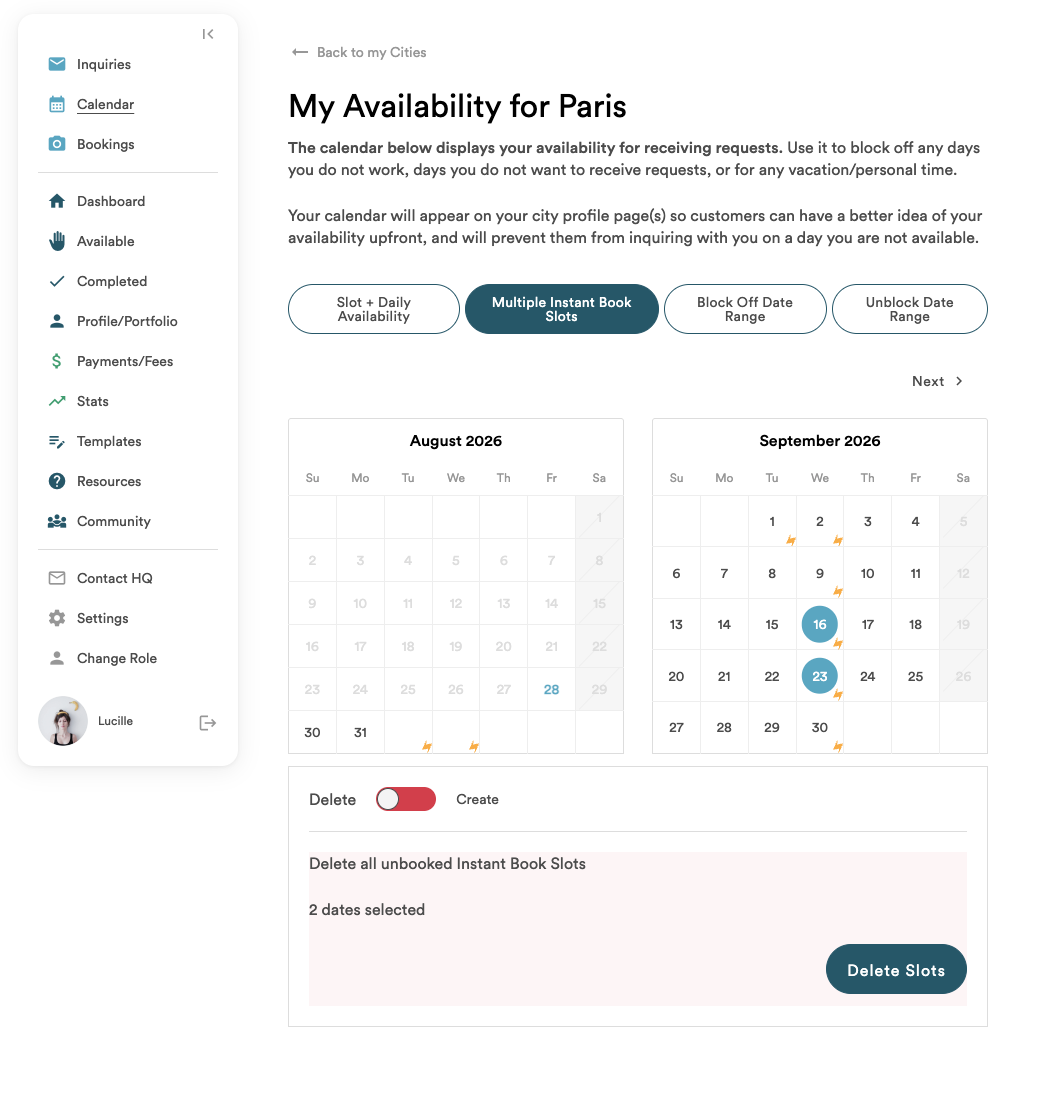
- In Block off Date Range mode, navigate to your desired month and click a start and end date for the calendar to automatically highlight all dates within that range.
- Click Save to block off all mornings and afternoons in that date range.
- If you’d also like to remove all unbooked Instant Book slots within that date range, check the box that says Also delete all unbooked Instant Book slots in this range before you click Save.
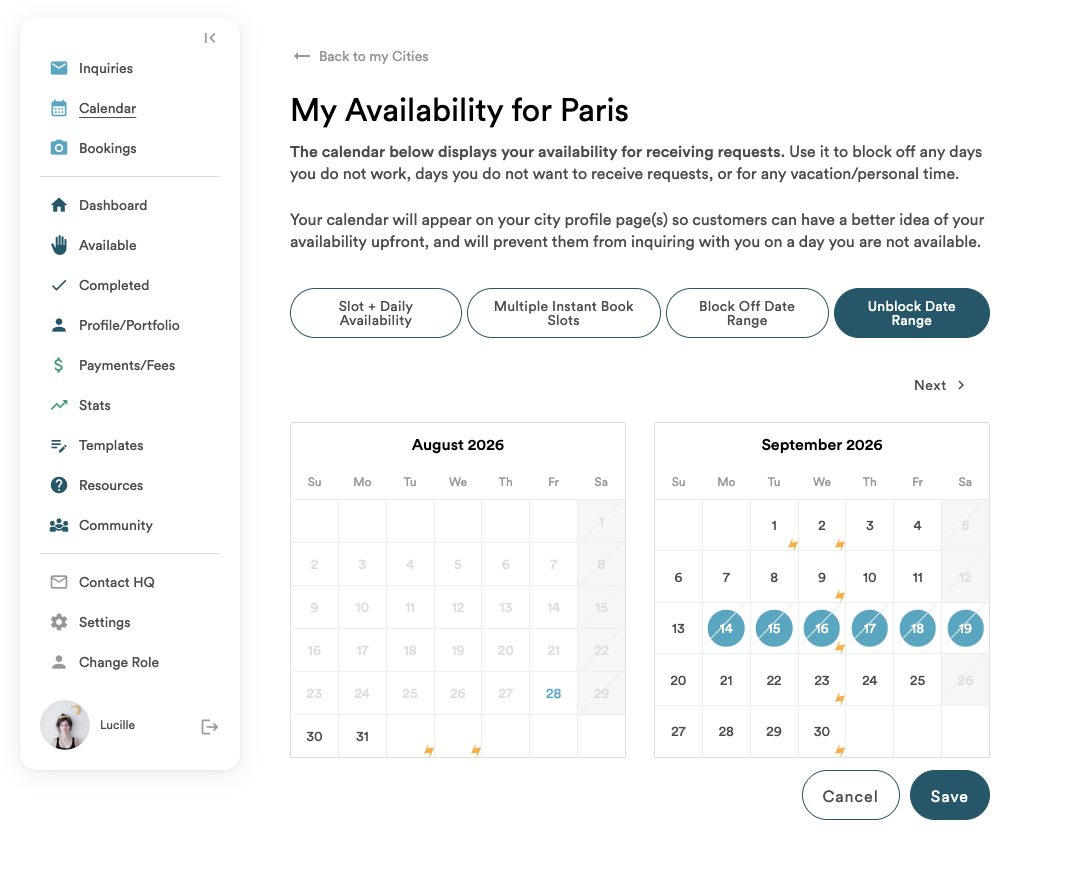
UNBLOCK DATE RANGE
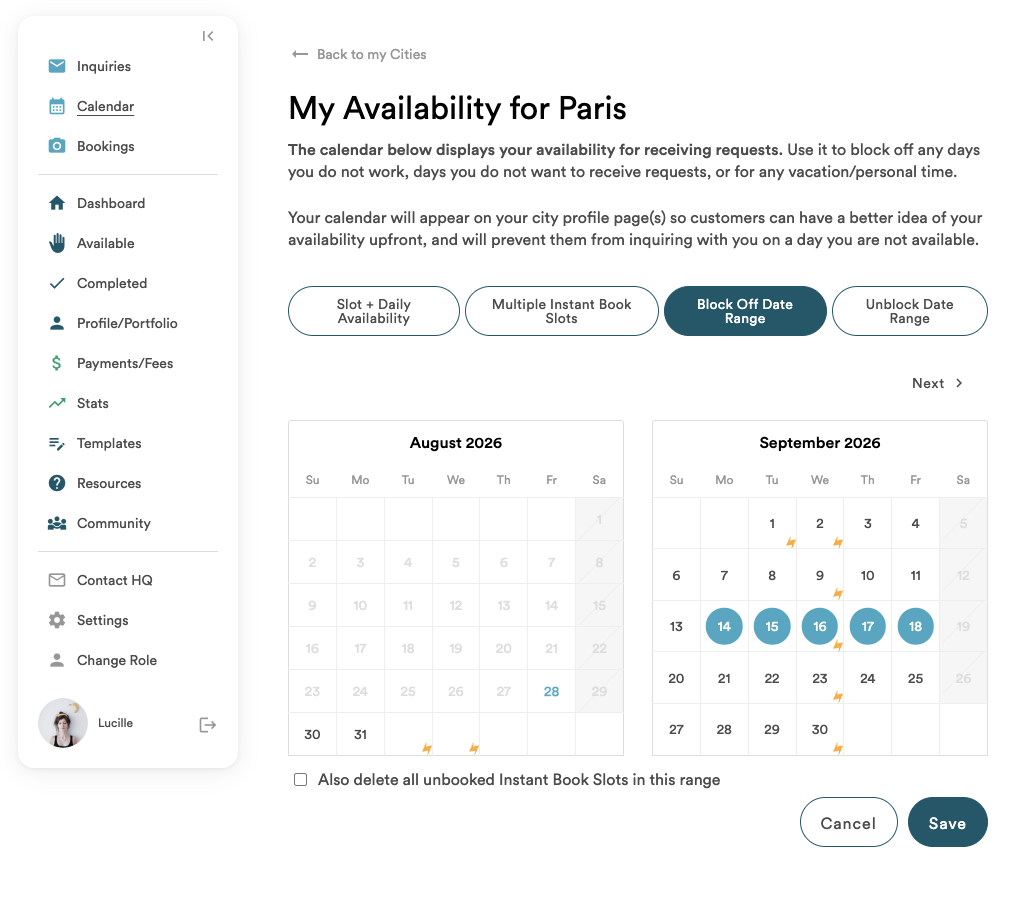
- In Unblock Date Range mode, navigate to your desired month and click a start and end date for the calendar to automatically highlight all dates within that range.
- Click Save to unblock all mornings and afternoons in that date range, thus making them available for bookings.
- Please note, all of the dates within your start and end date must be blocked off in order to be unblocked.
GLOBAL SETTINGS
- You Availability Calendar includes a few Global Settings to help keep your calendar up-to-date automatically
- Global Settings apply to all inquiries for all cities you shoot in
- Global Settings allow you to choose what happens to your calendar when a customer books, and when you don’t respond to an inquiry – either automatically blocking off that time slot, or keeping it available
- Separate from your Global Settings, for bookings where you respond as Not Available, you’ll have a choice on the response form to keep your calendar, or block it for the requested dates
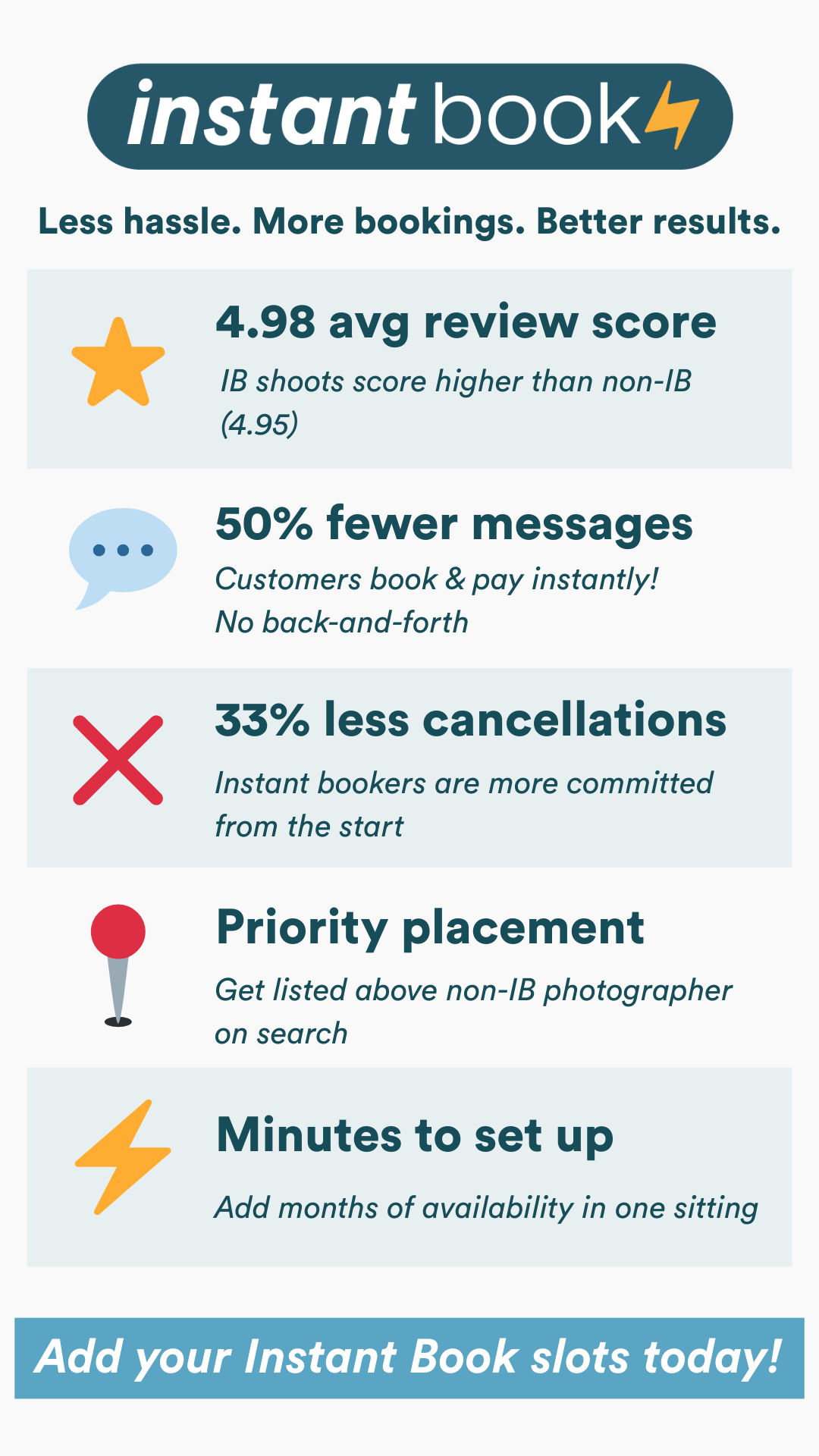
INSTANT BOOK ⚡️
Adding Instant Book Slots
- How-to add a single Instant Book slot on a single date
- How-to add multiple Instant Book slots on one or more dates
- How-to stack Instant Book slots before or after your existing bookings
- For bookings with predefined routes, we’ve added buttons on the Shoot Scoop for you to instantly add a 60-minute Instant Book slot before or after that booking
- Slots will be created for the same predefined route
Looking to suggest a new route so you can offer Instant Book slots at that location? Fill out the form here and our team will be in touch!
💬 Instant Book FAQs
How can I see my Instant Book slots?
In the Availability Calendar, dates with at least one Instant Book slot will show a yellow lightning bolt. ⚡To see your available slots and routes, click the date and scroll down. Each route will show how many slots are available. Click a route to see the specific times you’ve set up.
Is my Instant Book calendar separate from my regular calendar?
Yes! This is important. The two calendars are independent, which means:
- You can block off mornings, afternoons, or full days for regular inquiries and still keep your Instant Book slots open.
- Blocking time off on your regular calendar does not automatically remove your Instant Book slots. If you don’t want any shoots on a certain day, you need to remove your Instant Book slots separately — including when blocking off date ranges.
If I have Instant Book slots, can I still receive regular inquiries?
Yes. Instant Book slots are separate from the regular booking process. Customers can still send you a booking request for the same day and time as your slots.
Can I change the time of a slot after I've added it?
Yes. You can add, edit, or delete slots at any time. Click into the day that you want to adjust your Instant Book slot time and scroll down to where the routes are listed. Expand the route with the slot you want to adjust.
Can I change the details of a slot after it's been booked?
Yes, but please confirm any changes with your customer and concierge first, just like you would for any other shoot. Once confirmed, you can update the details through your account with us in the booking view or by contacting the concierge.
I got booked for a regular inquiry at the same time as an Instant Book slot. Do I need to remove the slot manually?
No. The system automatically removes any Instant Book slot that conflicts with a confirmed booking — whether it was booked through Instant Book or a regular inquiry.
🌟 Note: If you receive a regular inquiry (not yet confirmed) that conflicts with an Instant Book slot, the slot will not be removed until that shoot is officially booked. This means there could be a waiting period of up to 3 days where another customer could book you via Instant Book.
To avoid this, you can:
- Manually remove the Instant Book slot until the inquiry is confirmed.
- Block dates off for regular inquiries on days you have Instant Book slots, so the only way to book you is through Instant Book.
Can I set Instant Book slots on the same day for different routes?
Yes, but make sure you leave enough travel time between routes in case both slots are booked. For example, avoid scheduling 6:00 AM at Route 1 and 7:10 AM at Route 2 unless you can travel between them in 10 minutes or less.
Also, when you’re booked for a regular inquiry, check if you have any Instant Book slots set before that shoot time. If there isn’t enough travel time between them, we recommend deleting the Instant Book slot to avoid scheduling conflicts or being late.
Can the HQ team help me with Instant Book slots?
Yes! The HQ team can answer your questions about how Instant Book works. However, they cannot access your calendar or edit your slots. If you need any help with your Instant Book slots, please contact our team here!
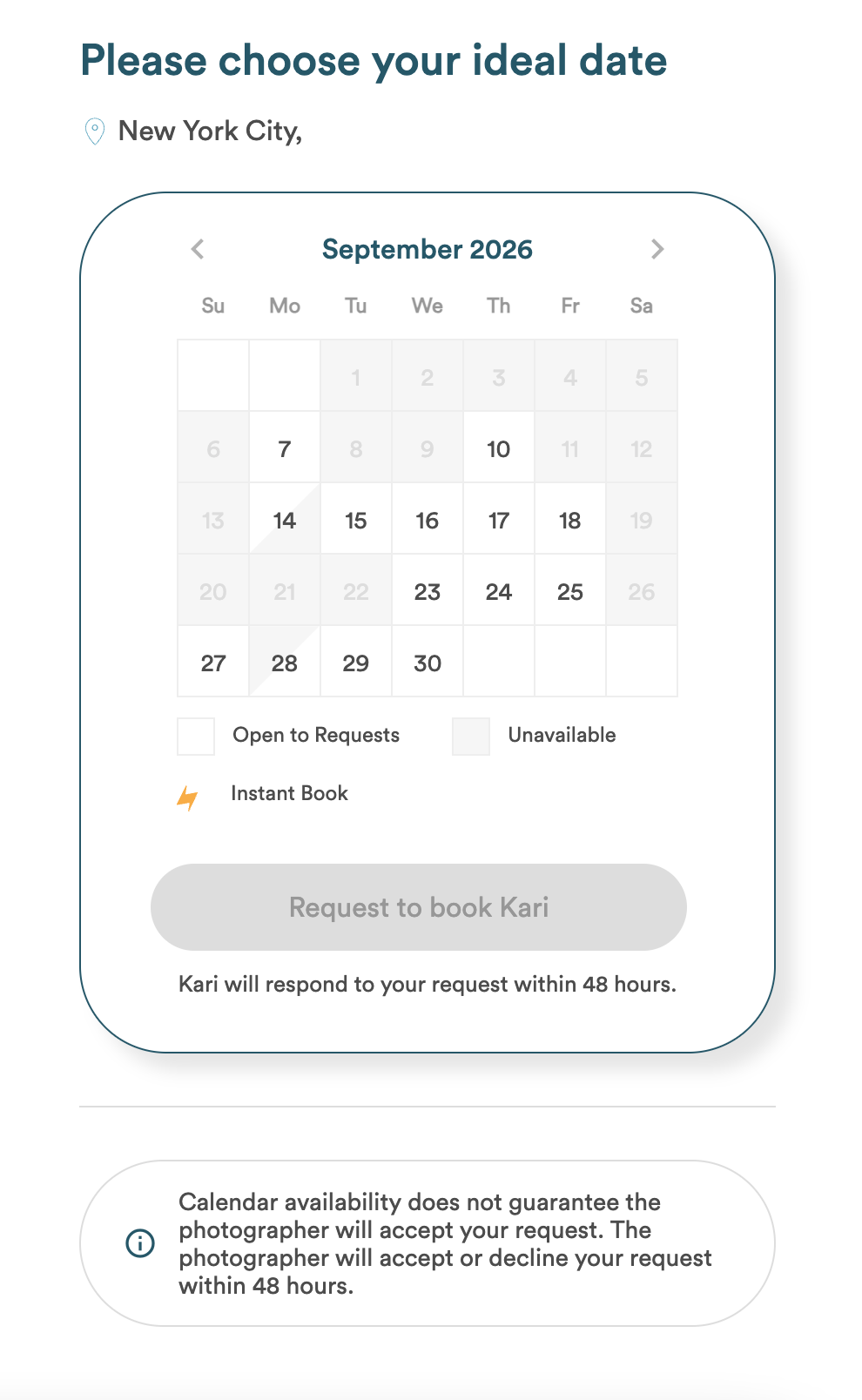
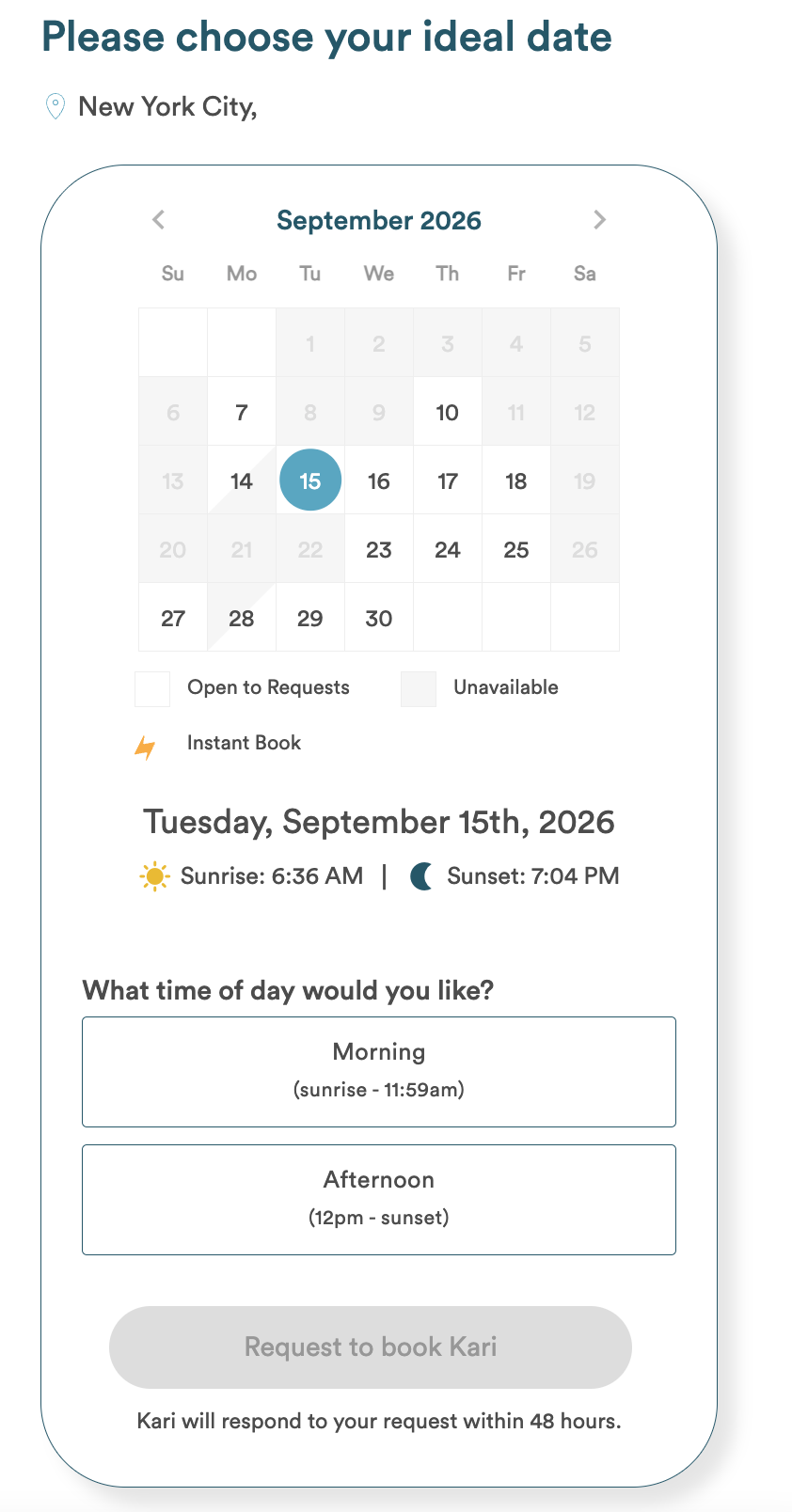
HOW CUSTOMERS VIEW YOUR CALENDAR
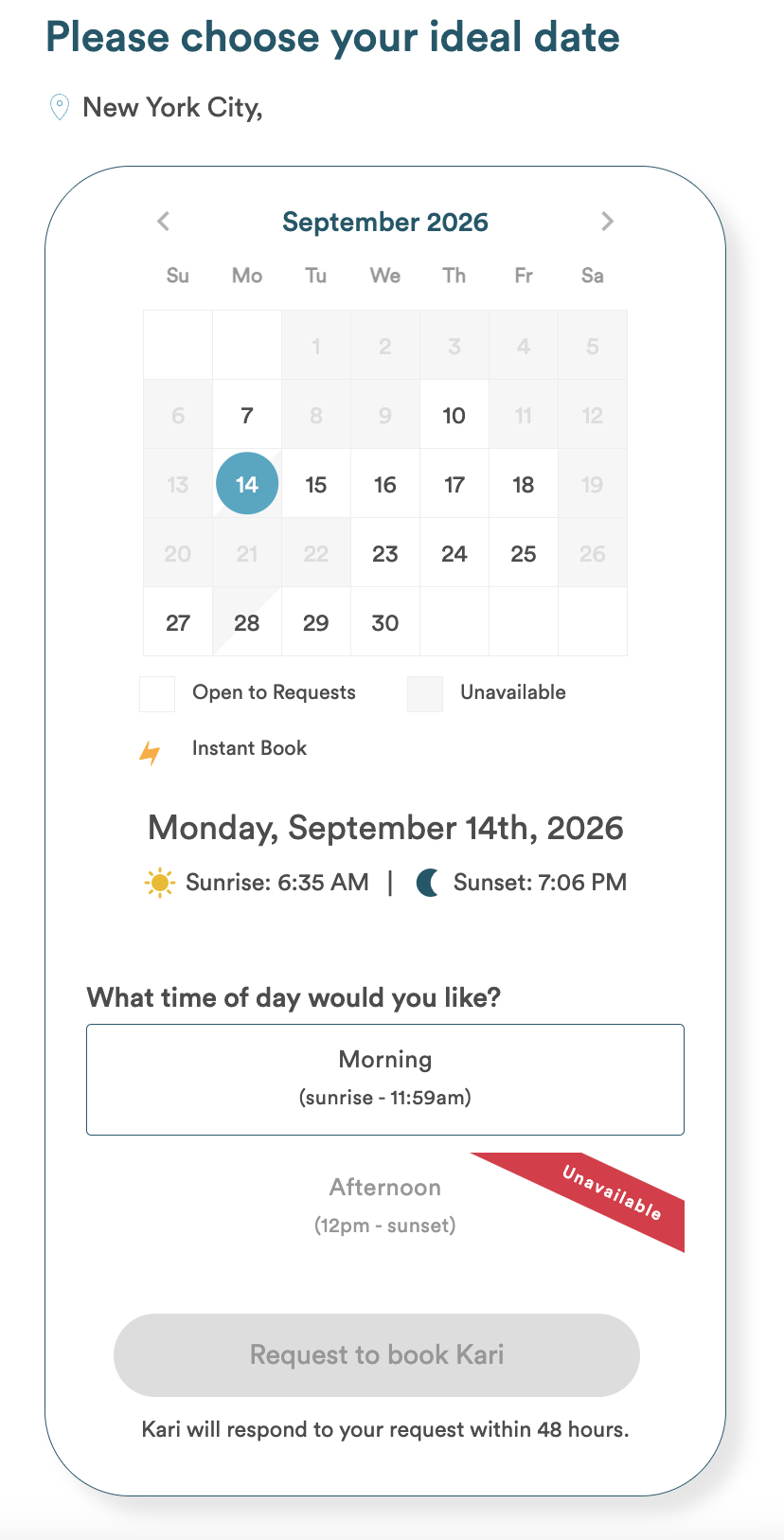
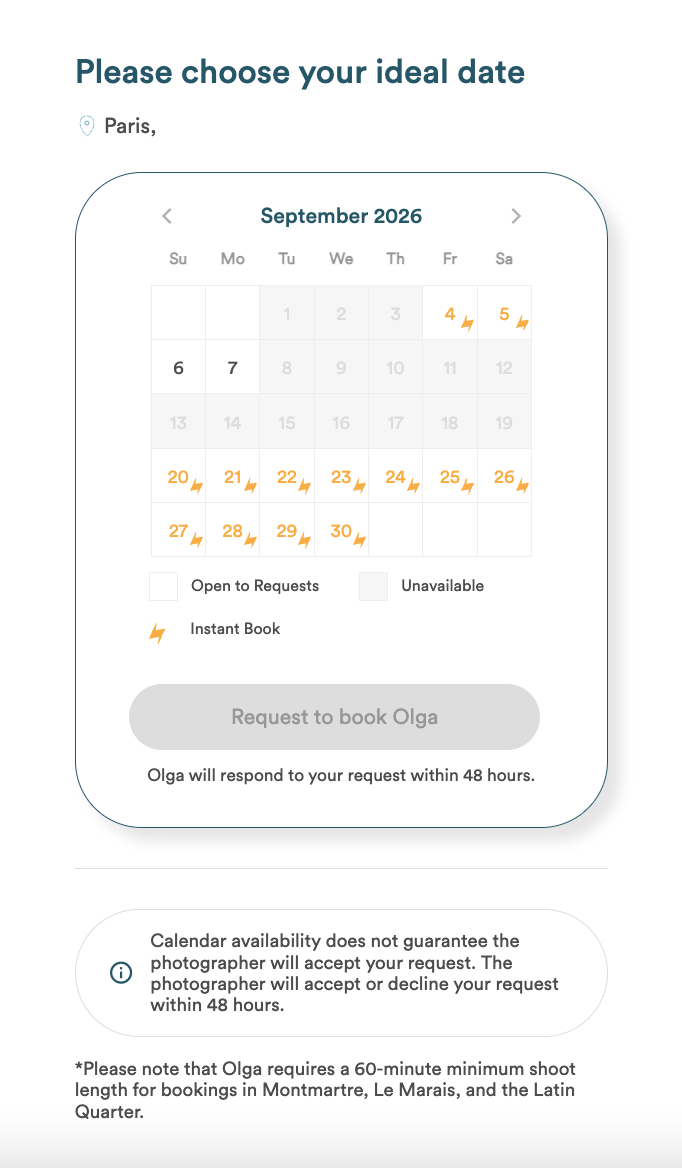
- Customers will see your calendar as available white days, unavailable grey days, or half available days
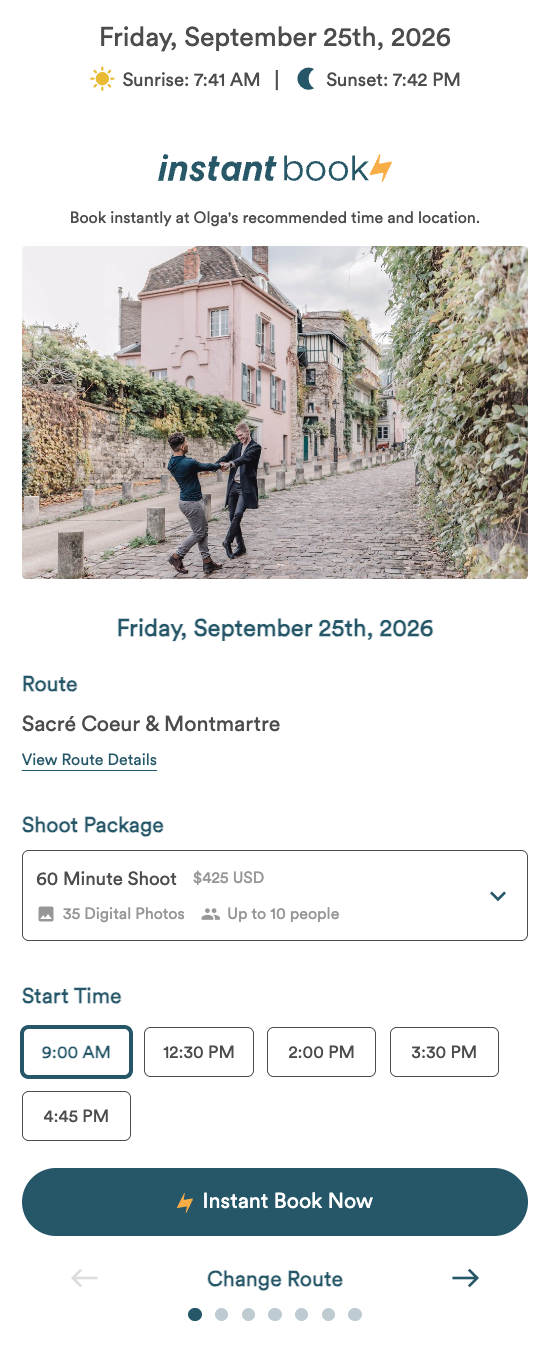
- Customers can click on available and half available days to see your Instant Book slots, or request a shoot
- Days with available Instant Book slots are marked with a lightening bolt icon
VIDEO RESOURCES
- How to block off a date/time slot:
https://www.loom.com/share/42b10606d6b841f0a727d6cbfd558779 - How to block/unblock recurring dates/time slots:
https://www.loom.com/share/95f4b950a6e14ed5b02ec219a4efd636 - Global settings & responding unavailable to requests:
https://www.loom.com/share/5e0a8aeda7ca4bcebc6aba1f9edb7fa1